
Tools
Grayed-out Menus appear in the toolbar of DMRC version 12.3.
The article discusses how to fix the grayed out menu or toolbar after installing or upgrading Dameware Mini Remote Control or Dameware Remote support.
First published date
9/8/2023 3:51 PM
Last published date
9/14/2023 2:26 PM
Overview
After installing or upgrading the DMRC or DRS to version 12.3.0, the main menu or toolbar is grayed out. The toolbar has to be reset to clear these menus.
Product section
Dameware Remote Support & Mini Remote Control
Cause
The issue only happens to version 12.3 of Dameware Mini Remote Control, and the toolbar must be reset.
Resolution
Follow the steps below:
1) Click (1) on the toolbar to access the dropdown menu.
2) Click on Reset Toolbar (2).
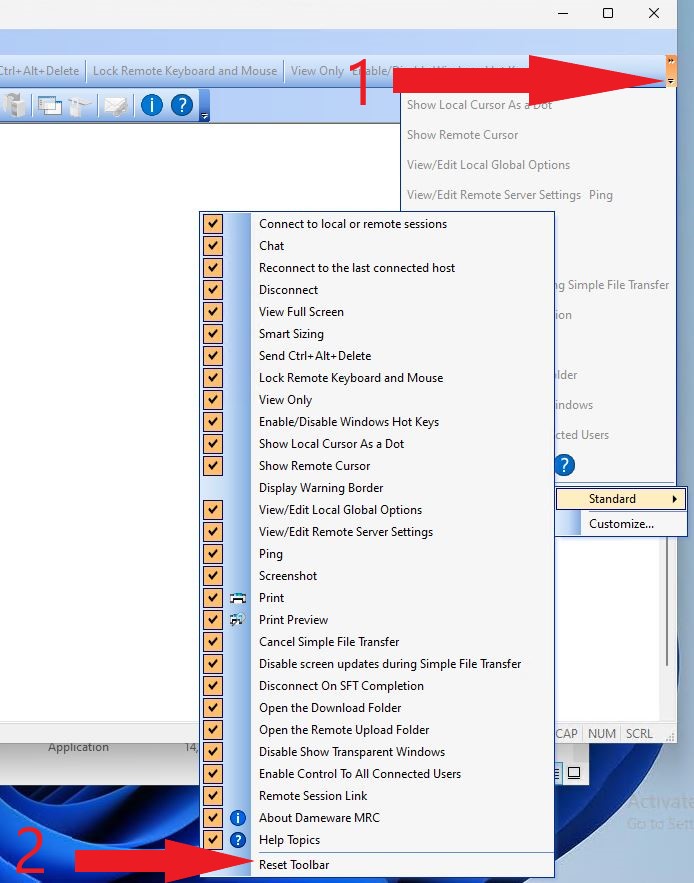
3) Close the Dameware Mini Remote Control and open it again. The toolbar should now appear like this:

3) if this does not reset the toolbar or is still grayed out, close the DMRC application and delete the file called Bars_Main located in C:\Users\current_username\AppData\Roaming\DWRCC.
1) Click (1) on the toolbar to access the dropdown menu.
2) Click on Reset Toolbar (2).
3) Close the Dameware Mini Remote Control and open it again. The toolbar should now appear like this:
3) if this does not reset the toolbar or is still grayed out, close the DMRC application and delete the file called Bars_Main located in C:\Users\current_username\AppData\Roaming\DWRCC.