
Tools
Generate an MSI installer to deploy agents in DRE
This article will describe how you can generate an MSI installer in DRE that you can use for deployments.
First published date
4/14/2022 2:47 PM
Last published date
4/14/2022 2:47 PM
Overview
In DameWare Remote Everywhere, you can install the DRE Agents to your machines by generating an MSI installer and deploying it via your GPO. This is to minimize the effort of adding each device within the admin console.
Product section
Dameware Remote Everywhere
Resolution
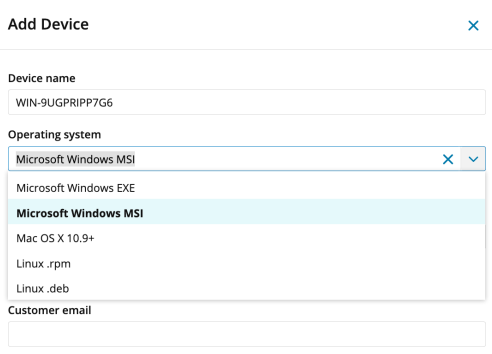
While adding a new device from the Devices page of the Admin Area, select the Microsoft Windows MSI installer option to mass deploy the Agent to multiple devices.
1. In the Admin Area, select Devices from the left navigation pane, click Add Device, and enter a name for the new device.
2. In the Operating System section of the new device configuration window, select the Microsoft Windows MSI option.
3. Enter the Customer Details.
4. In the Device Expiry section, select Device never expires.
5. Click Save and the installer downloads in a new tab in your browser.
6. After the download is complete, open and deploy the MSI file with the appropriate parameters:
*IMPORTANT:
Make sure to configure a Group Policy, as the group policy definition is what actually deploys and installs the Agent on your devices. The deployment pushes the MSI to a group policy controller which populates to all downstream devices and installs the Agent.
1. In the Admin Area, select Devices from the left navigation pane, click Add Device, and enter a name for the new device.
Navigate to Profile > Agent Setup > General to configure the computer name as the default device name. When this is enabled, the supplied device name is ignored and replaced with the computer name.
3. Enter the Customer Details.
4. In the Device Expiry section, select Device never expires.
5. Click Save and the installer downloads in a new tab in your browser.
6. After the download is complete, open and deploy the MSI file with the appropriate parameters:
a. Normal silent install: msiexec /i /qn path_to_msi
b. Silent install of an instance: msiexec /i /qn path_to_msi INSTANCE="instance_name"
c. Uninstall: msiexec /uninstall path_to_msi
*Note: This option requires an MSI on disk.
b. Silent install of an instance: msiexec /i /qn path_to_msi INSTANCE="instance_name"
c. Uninstall: msiexec /uninstall path_to_msi
*Note: This option requires an MSI on disk.
*IMPORTANT:
Make sure to configure a Group Policy, as the group policy definition is what actually deploys and installs the Agent on your devices. The deployment pushes the MSI to a group policy controller which populates to all downstream devices and installs the Agent.