
Applications Systems
FIM driver not working properly in SCM
This article explains the potential causes and resolutions for the issue that occurs when the FIM driver, which is required for real-time monitoring, is not working properly. FIM driver appears to be installed, but its version cannot be determined. 'Who made the change' detection is not working properly. FIM driver required for 'who made the change' detection is not working properly.
First published date
6/11/2019 8:29 PM
Last published date
8/14/2020 6:07 PM
Overview
This article describes the cause and resolution for the issue that occurs when the FIM driver, which is required for real-time monitoring, does not work properly.
The Server Configuration Node Details page should display in the Configuration Details widget:
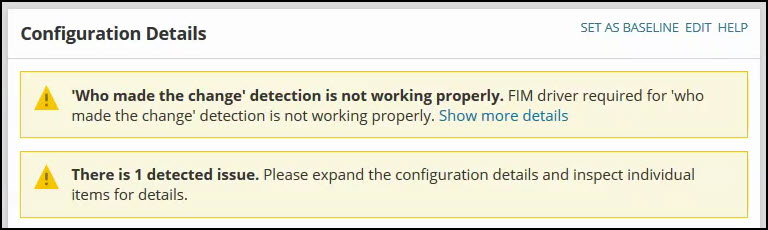
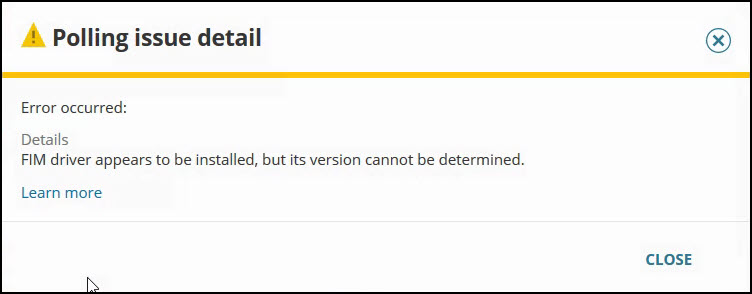
The Server Configuration Node Details page should display in the Configuration Details widget:
Product section
Server Configuration Monitor
Cause
The FIM driver can fail to initialize due to the following errors:
- The FIM driver is already installed, but the version is not as current as required.
- The FIM driver is already installed, but the version is not compatible.
- The installation of the FIM driver failed.
- Loading of the FIM driver failed.
- Initialization of the FIM driver timed out. (Timeout is set to 30 seconds.)
- Another exception occurred.
Resolution
- To determine whether SWFsv2Fltr (the FIM driver) is correctly installed and loaded, enter the following command line:
fltmc
- Check to see if SWFsv2Fltr is in the list:
- If the filter is not loaded, enter the following command line:
driverquery
- Check to see if the SWFsv2Fltr driver is in the list:
- If the driver is not in the list, try to install it manually. Go to the SCM agent plugin folder by entering the following command:
cd “c:\Program Files (x86)\SolarWinds\Agent\Plugins\SCM”
- Enter the following command:
RUNDLL32.exe SETUPAPI.DLL, InstallHinfSection DefaultInstall 128 .\SWFsFltrv2.inf
- If no error message is displayed, the driver is installed, and you can check it using the driverquery command (as above).
- Try to load the driver by entering the following command:
fltmc load SWFsv2Fltr
- Determine whether you see output.
- If no, then loading of the filter succeeded, and you can check it using the fltmc command.
- If yes, then loading of the driver failed. For example, the following error is displayed when the driver is not installed:
- If no, then loading of the filter succeeded, and you can check it using the fltmc command.
Additional Information
- Restarting the Orion agent is sometimes needed to see updated results in the web interface.
- If "installation failed" is received in the above commands, try rebooting the agent server and attempt again.