
Security Compliance
When selecting the "live events'' tab on SEM Web UI, you see an error "Error occurred while loading event details. The requested resource could not be found".
This article is created to address the issue where the historical data tab is empty, and on opening the "live events" tab, you see the error "Error occurred while loading event details. The requested resource could not be found".
First published date
3/10/2024 1:48 PM
Last published date
2/19/2025 11:03 PM
Overview
When selecting the "live events'' tab, an error occurred while loading event details. The requested resource could not be found.

The historical event tab is empty.
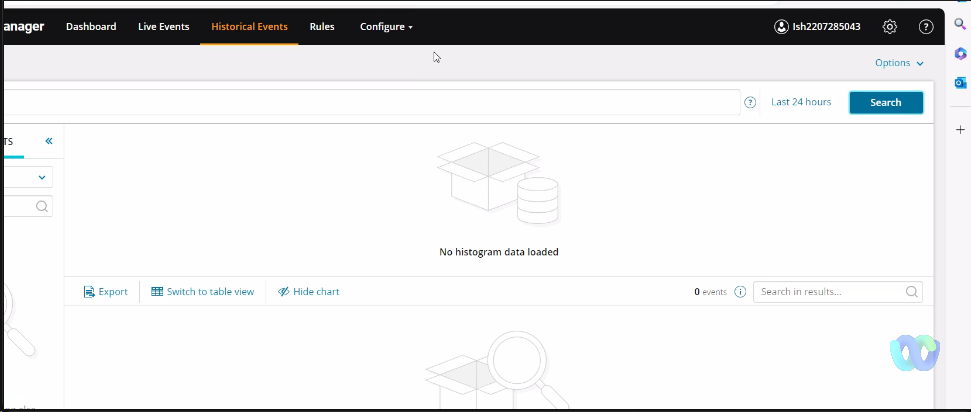
"Error occurred while loading event details. The requested resource could not be found'' occurs if the HSQL Database Index works improperly. This article covers the steps for resetting the HSQL (Hyper SQL) database Index. HSQL is an SQL relational database system written in Java. It offers a small, fast multithreaded and transactional database engine with in-memory and disk-based tables and supports embedded and server modes. It keeps all the data changes over time, allowing queries to view historic snapshots and, with PERIOD predicates, data changes over any period of time.
The historical event tab is empty.
"Error occurred while loading event details. The requested resource could not be found'' occurs if the HSQL Database Index works improperly. This article covers the steps for resetting the HSQL (Hyper SQL) database Index. HSQL is an SQL relational database system written in Java. It offers a small, fast multithreaded and transactional database engine with in-memory and disk-based tables and supports embedded and server modes. It keeps all the data changes over time, allowing queries to view historic snapshots and, with PERIOD predicates, data changes over any period of time.
Product section
Security Event Manager
Cause
HSQL holds statistical, corrupted data and the code for the web(historical events, live events). For this reason, sometimes, the historical page does not open up as HSQL is holding corrupted data.
On resetting HSQL, data gets replaced with empty; there is nothing in the tables until SEM starts up again. That's why we need to stop SEM, reset HSQL, and restart SEM.
On resetting HSQL, data gets replaced with empty; there is nothing in the tables until SEM starts up again. That's why we need to stop SEM, reset HSQL, and restart SEM.
Resolution
Reset the SEM Database Index (HSQL)
- Open an SSH connection with the SEM using root.
- Open a second SSH session with cmc.
- From the cmc, stop the manager service (cmc>manager>stop) using the stop command.
- From the root session, navigate to the alertdata folder: cd /var/alertdata/.
- From the root session, remove the database index (hsql) folder: rm -rf hsql.
- From the cmc, start the manager service (cmc>manager>start) using the start command.
- From the cmc, run the top command from the appliance section (cmc>appliance>top), and then make sure the java process is running.
- Wait 3-5 minutes for the manager service to initialize.