
Tools
Error migrating to PostgreSQL 13 after upgrade to WHD 12.7.7.
This article addresses a situation where updating PostgresSQL to version 13 fails and the service cannot be started.
First published date
12/15/2021 8:33 PM
Last published date
3/26/2025 8:42 PM
Overview
In some Windows environments, the WHD 12.7.7 update installs fine the application starts fine using PostgreSQL9
However when attempting to complete instructions to update the database to PostgreSQL13, the PowerShell script fails with error stating the service is not running.
However when attempting to complete instructions to update the database to PostgreSQL13, the PowerShell script fails with error stating the service is not running.
Error: The ProgreSQL upgrade failed, for further information see the upgrade logs 'C:\Program Files\WebHelpDesk\log\upgrade.output.log' 'C:\Program Files\WebHelpDesk\log\upgrade.error.log' for more information.
The Web Help Desk PostgreSQL 13.3 Embedded Database service is not started.
More help is available by typing NET HELPMSG 3521.
The Web Help Desk PostgreSQL 13.3 Embedded Database service is not started.
More help is available by typing NET HELPMSG 3521.
Product section
Web Help Desk
Cause
The local policy does not give Logon Locally privileges to new users (in this case the account - 'PostgresWHD')
Resolution
a) Configure group policy management and allow Logon Locally privileges to 'PostgresWHD' to be able to login to the windows
1. Run Group Policy Management as Administrator.
To instantly reflect the above changes in Group Policy Management, you should do the following:
NOTE:
A.) You may get a grayed out Add User button in User Rights Assignment . This issue also occurs If the current user is not a member of Domain Admins security group or Enterprise Admins security group.
To enable grayed out Add User button in User Rights Assignment, do the following:
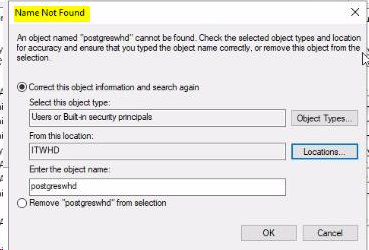
B.) If you are not able to add the PostgresWHD username in the gpedit as it shows Name Not Found:
1. Run Group Policy Management as Administrator.
- Open start menu > type “gpedit.msc“.
- Right-click and select run as administrator.
- Under Computer configuration > go to Windows Settings > Security Settings > Local Policies > User Rights Assignments.
- Right Click on Allow Logon Locally > Properties.
- Click on Add User and Group then add the new user account 'PostgresWHD'
To instantly reflect the above changes in Group Policy Management, you should do the following:
- Open CMD as administrator.
- Run the below command to apply Policy update.
gpupdate /force
b) Run WebHelpDesk\bin\upgradeDatabase.bat againNOTE:
A.) You may get a grayed out Add User button in User Rights Assignment . This issue also occurs If the current user is not a member of Domain Admins security group or Enterprise Admins security group.
To enable grayed out Add User button in User Rights Assignment, do the following:
- Open “Administrative Tools” as administrator.
- Press shift + right-click to run “Group Policy Management” as a different user.
- Then provide the credential of a domain administrator account.
- In Group Policy Management Editor.
- Expand Computer Configuration > Policies > Windows Settings > Security Settings > Local Policies > User Rights Assignment.
- In the pane details > Double click on Allow Log on Locally.
B.) If you are not able to add the PostgresWHD username in the gpedit as it shows Name Not Found:
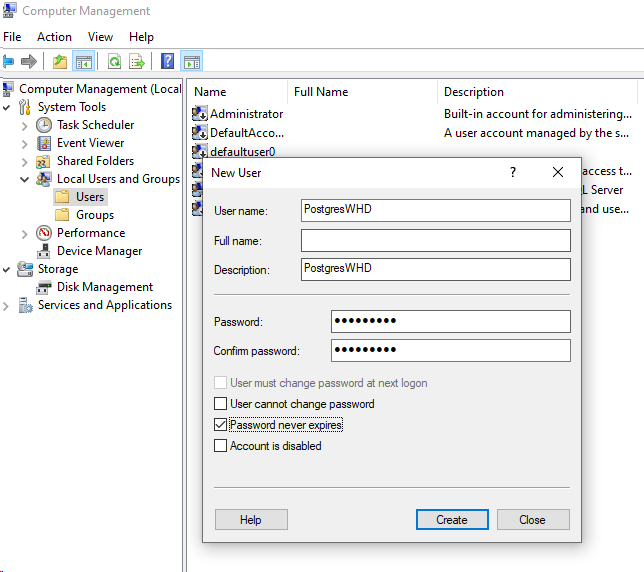
- You need to add the PostgresWHD user first in the Computer Management.
- Open start menu > type "Computer Management"
- Right-click and select run as administrator.
- Go to Computer Management > System Tools> Local Users and Groups > Users
- Right-click New User > Fill out the fields and put a password then hit the Create button.
- Once created, go back to gpedit and you can now add the PostgresWHD in the Allow Log on Locally.