
Network Management
Another application has exclusive access to the file 'C:\Program Files (x86)\Solarwinds\Orion\SWDiscovery.cfg' in Orion
This article describes an issue where you receive the following Failed: Another application has exclusive access to the file 'C:\Program Files (x86)\Solarwinds\Orion\SWDiscovery.cfg'.
First published date
11/29/2018 10:29 PM
Last published date
4/17/2021 3:34 AM
Overview
This article describes the issue in the Orion core, its modules, and the Configuration Wizard wherein you receive the following error:
- OR -
Running the Installation and getting the failure below:
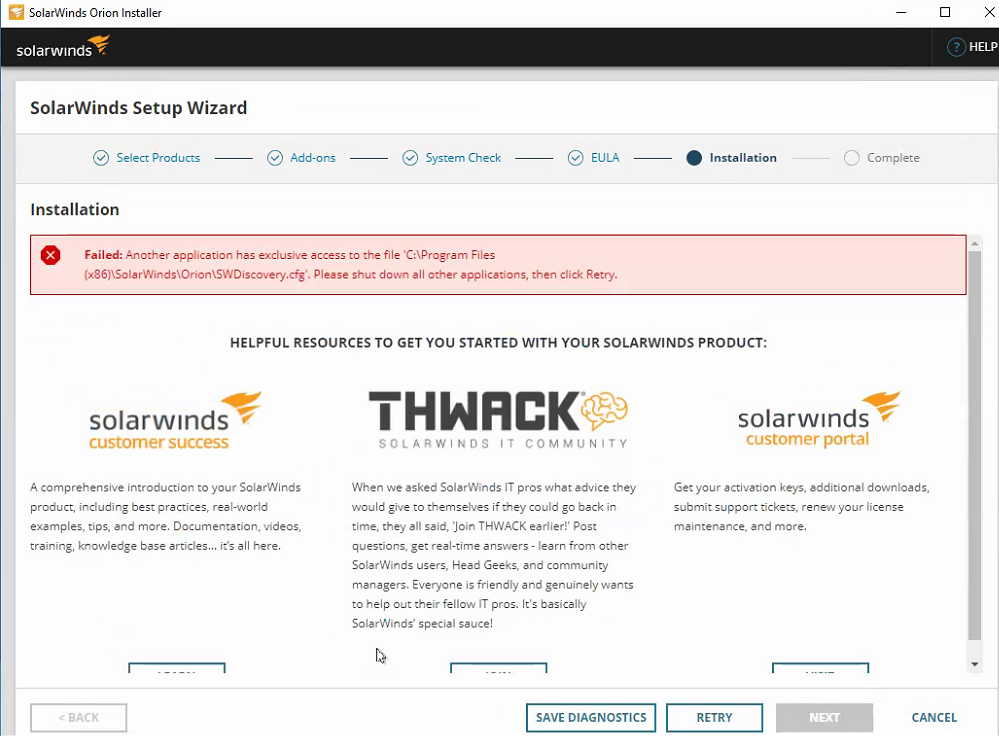
Another application has exclusive access to the file 'C:\Program Files (x86)\Solarwinds\Orion\SWDiscovery.cfg'.
- OR -
Running the Installation and getting the failure below:
Product section
Orion Platform
Cause
Task Manager's Users tab seeing another user currently connected locally or remotely to the same machine.
Resolution
- Stop all Orion services and make sure there are no other users are connected to the Orion server.
- To do this, go to Task Manager > press CTRL+SHIFT+ESC or right-click the taskbar and select Task Manager.
- Click Task Manager's Users tab to see all the users that are currently connected locally or remotely to the same machine.
- Disable Anti-virus temporarily OR check if Anti-virus exclusion has been set:
Files and directories to exclude from antivirus scanning for Orion Platform products
- Reboot the Orion server.
- Re-run the Installer or the Configuration Wizard as Administrator.
Alternative solution:
Restart the Orion server then run the Installer or the Configuration Wizard as Administrator.
If the issue still persists after doing the steps above, try the following:
- Go to this path:
- C:\Program Files (x86)\SolarWinds\Orion\SWDiscovery.cfg
- Copy and Back up file SWDiscovery.cfg to a safe location like the desktop
- Delete the file SWDiscovery.cfg and check the error message. It should show which process is using the SWDiscovery.cfg file. Go to task Manager and End Task that process then retries installation.