
Database Management
Enumerating a ForEachLoop Container for Multiple SFTP Logins
First published date
7/29/2021 4:42 PM
Last published date
7/29/2021 4:42 PM
Overview
If you want to store SFTP Login credentials outside of the SSIS package or, want to use multiple credentials to download data from multiple Salesforce accounts.
Product section
Task Factory (TF)
Resolution
The overall process is to populate an Object Variable with a table of the credentials, then enumerate through each row of the table when executing the Data Flow Task.
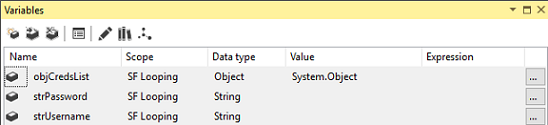
1. The first thing to do is to setup the three variables you will need to use, one Object and two String. For this example, I named them objCredList, strPassword, and strUsername.
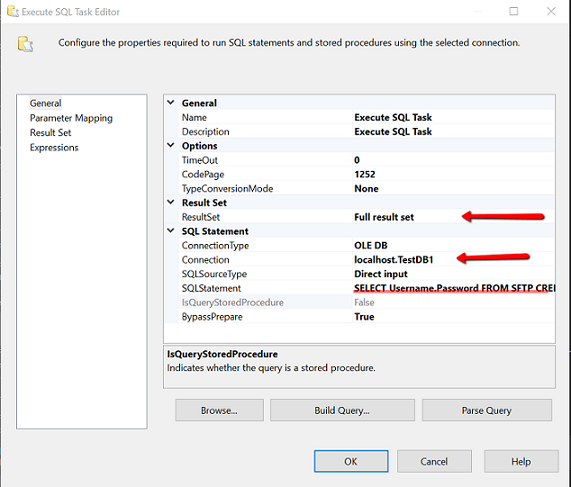
2. The next step is to populate your table of login credentials into the Object Variable. To do this you will use an Execute SQL Task in the Control Flow. You will need to configure two tabs of the task. On the General tab, you will set the ResultSet to “Full result set”, set the Connection to your database, and the SQL Statement to query the Username and Password from that table.
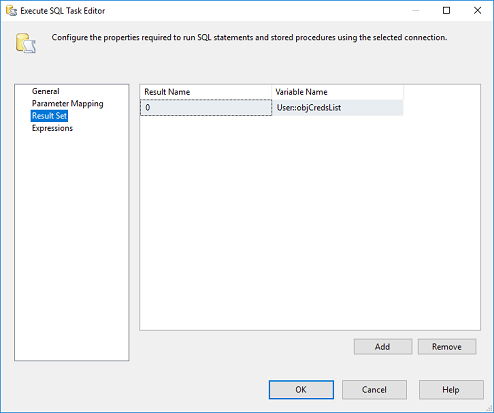
3. On the Result Set tab, you will set the Result Name to zero (0) and the Variable Name to the name of your Object Variable.
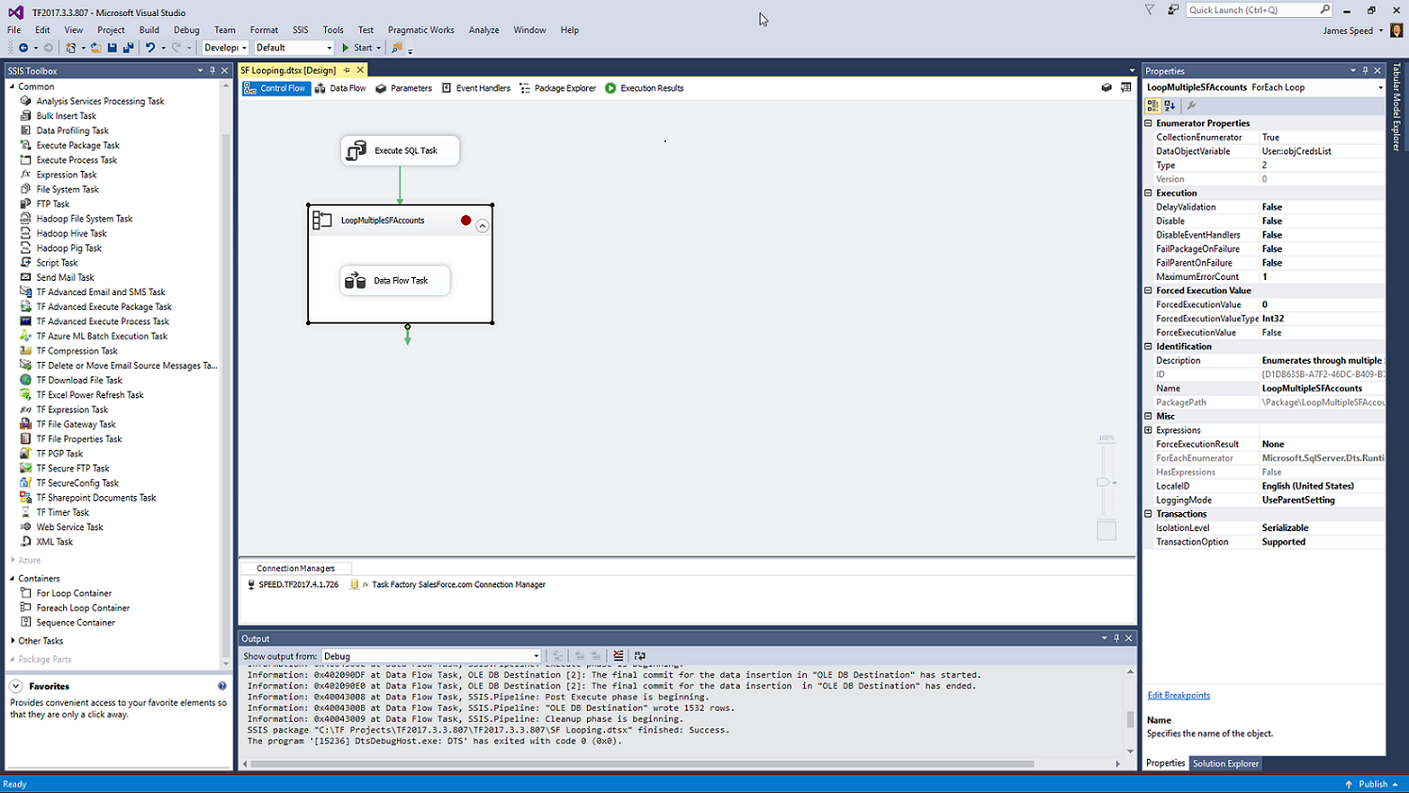
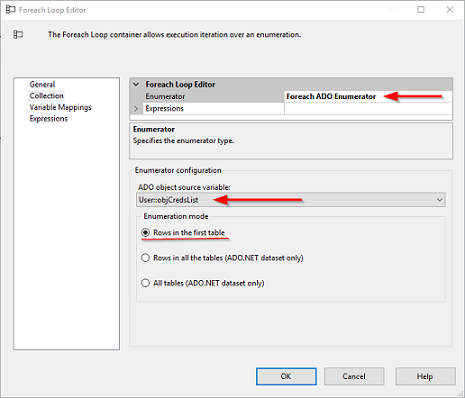
4. The next step is to configure a ForEachLoop container. In this configuration, you will work with two (2) tabs, Collection and Variable Mappings. In the Collection tab, you will choose “ForEach ADO Enumerator” as the Enumerator type and select your Object Variable as the ADO object source variable. (Leave the Enumeration mode set to “Rows in the first table”)
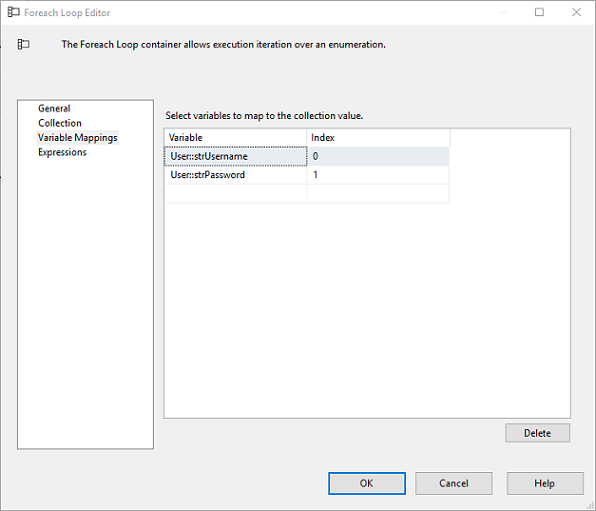
5. Then on the Variable Mappings tab, you will assign the Username and Password to their respective variable. The index will be in relation to the order of your SQL Query in the Execute SQL Task.
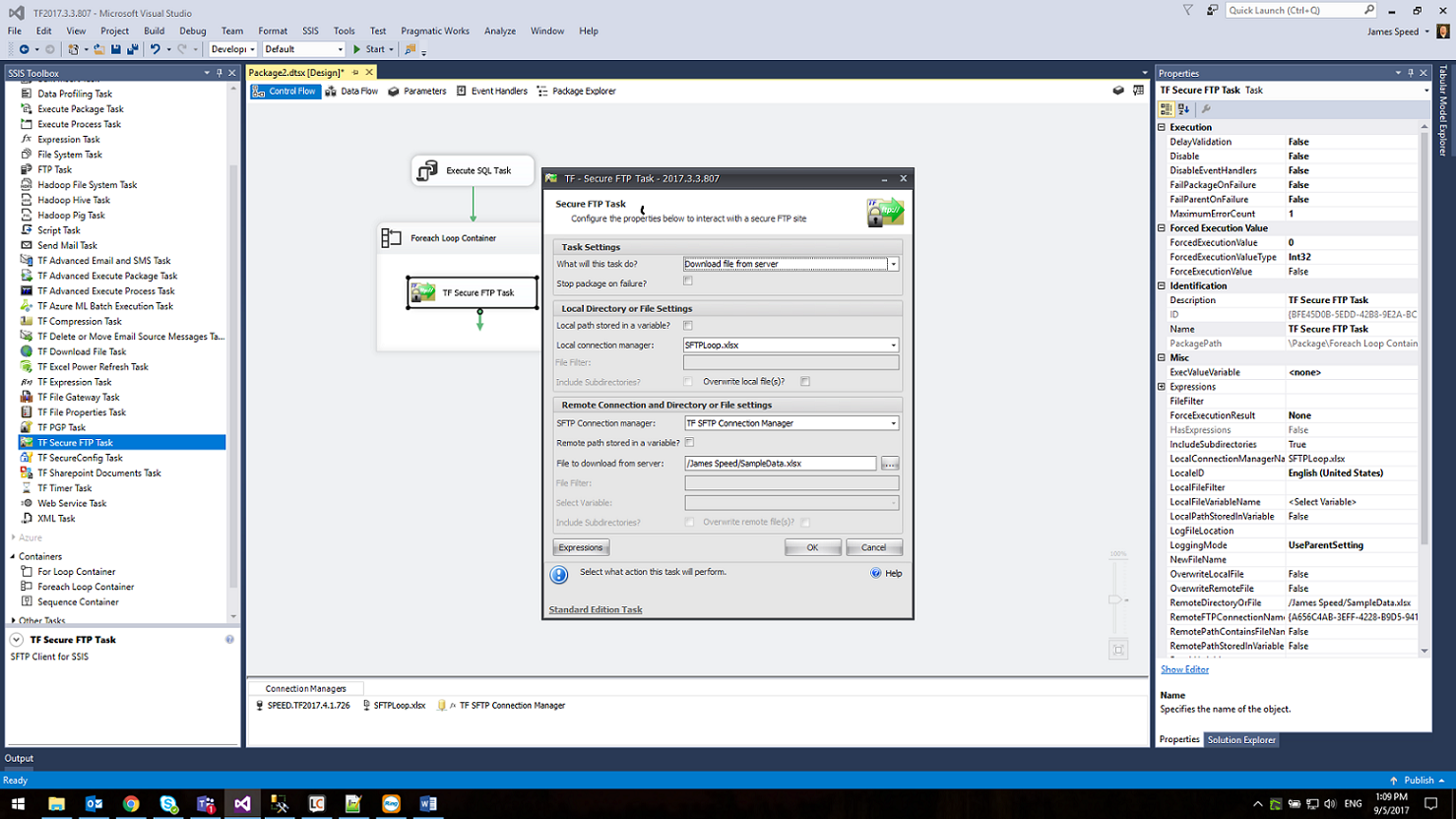
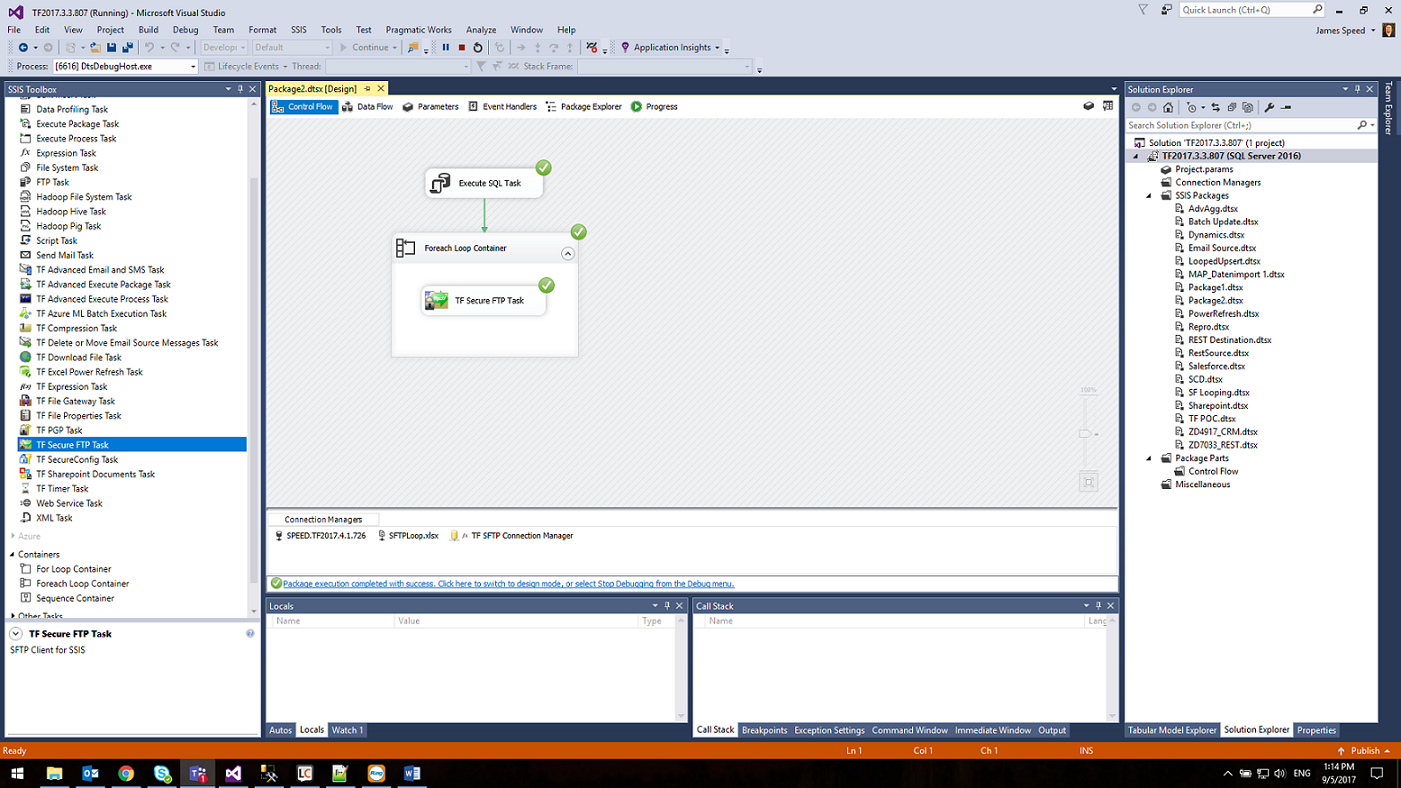
6. Then in the Control Flow inside the ForEachLoop Container setup your Task Factory Secure FTP component and the rest of your flow.
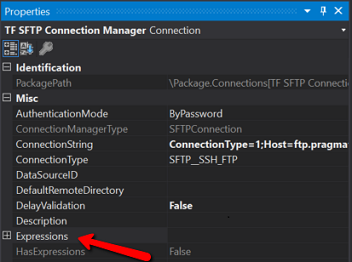
7. Next you will select the Connection Manager and hit F4 to bring up the properties window. In this window, you will select the property “Expressions” and click on the ellipses.
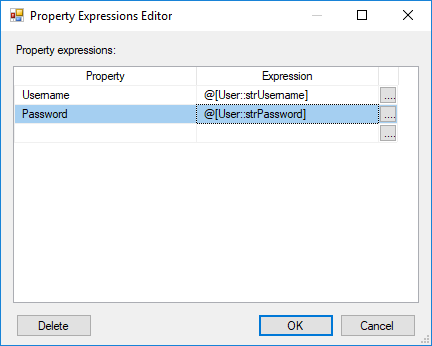
8. In the Expressions Editor, you will select Username and Password to assign the newly populated variables to the properties.
9. Now when executed the Execute SQL task will populate the object variable, the ForEachLoop Container will parse out each row to is appropriate variable, and the Secure FTP connection manager will use those variables for the credentials. Note in my example I only used Username and Password, you can also store and populate other connection parameters such as Host name/IP address, and Port number.
1. The first thing to do is to setup the three variables you will need to use, one Object and two String. For this example, I named them objCredList, strPassword, and strUsername.
2. The next step is to populate your table of login credentials into the Object Variable. To do this you will use an Execute SQL Task in the Control Flow. You will need to configure two tabs of the task. On the General tab, you will set the ResultSet to “Full result set”, set the Connection to your database, and the SQL Statement to query the Username and Password from that table.
3. On the Result Set tab, you will set the Result Name to zero (0) and the Variable Name to the name of your Object Variable.
4. The next step is to configure a ForEachLoop container. In this configuration, you will work with two (2) tabs, Collection and Variable Mappings. In the Collection tab, you will choose “ForEach ADO Enumerator” as the Enumerator type and select your Object Variable as the ADO object source variable. (Leave the Enumeration mode set to “Rows in the first table”)
5. Then on the Variable Mappings tab, you will assign the Username and Password to their respective variable. The index will be in relation to the order of your SQL Query in the Execute SQL Task.
6. Then in the Control Flow inside the ForEachLoop Container setup your Task Factory Secure FTP component and the rest of your flow.
7. Next you will select the Connection Manager and hit F4 to bring up the properties window. In this window, you will select the property “Expressions” and click on the ellipses.
8. In the Expressions Editor, you will select Username and Password to assign the newly populated variables to the properties.
9. Now when executed the Execute SQL task will populate the object variable, the ForEachLoop Container will parse out each row to is appropriate variable, and the Secure FTP connection manager will use those variables for the credentials. Note in my example I only used Username and Password, you can also store and populate other connection parameters such as Host name/IP address, and Port number.