
Tools
Enable or Disable notification DRE technician is in session
The article describes the procedure on how to set DRE notification.
First published date
4/8/2019 2:02 PM
Last published date
9/1/2020 3:29 PM
Overview
How to notify the End User when a technician is performing a remote session and how to stop the remote session notification from showing.
Product section
Dameware Remote Everywhere
Resolution
On the remote computer
On the DRE Admin:
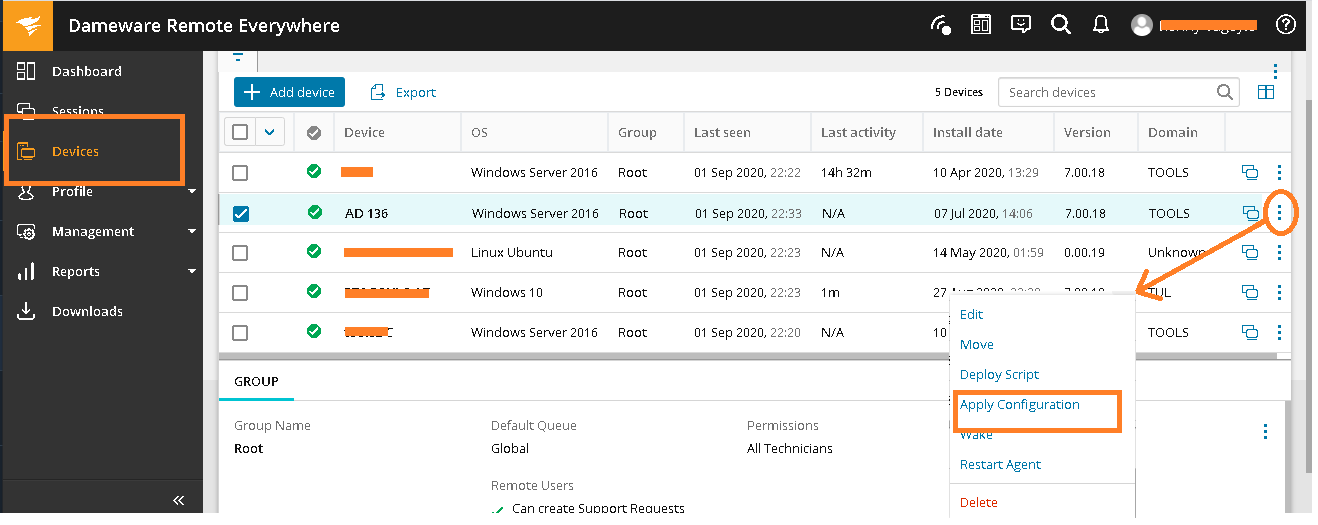
1. On the DRE Admin Area, go to Devices > put a check on the device or remote host you want to verify > click for more action
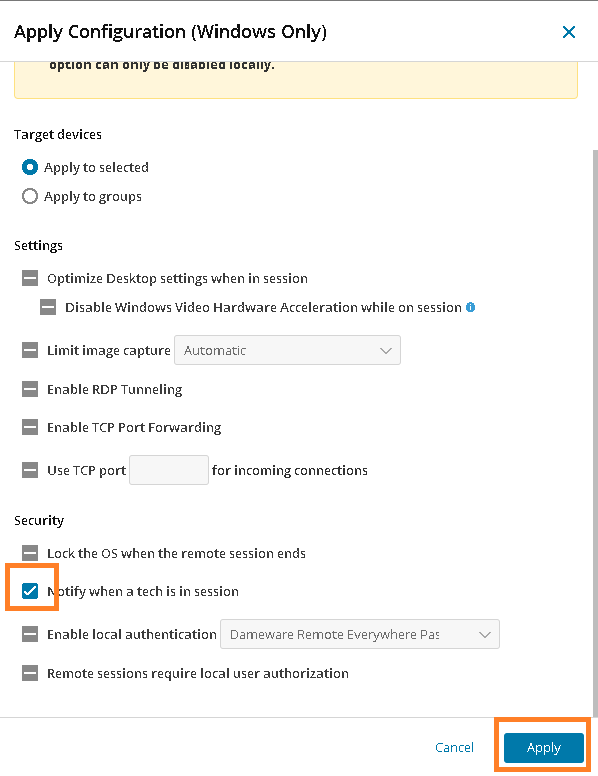
2. Click on the Apply Configuration > scroll down and see if the "Notify when a tech is in session" has a check on it or whatnot. If not Check it then hit Apply
3. Wait for the update apply on that target machine then connect to it to verify.

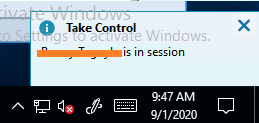
Once you connect to the target machine, the DRE agent notification box stating your name (or the name of the connected tech) will open on the remote machine's system tray. It will stay open until the remote tech disconnects.
You can also check the support article below for reference
- Login to the Remote Device.
- Restore the Dameware Remote Everywhere configuration application.
- It can be searched for but it's usually found in the System Tray to the bottom right corner of the Desktop.
- Should the SETTINGS button not be visible, click the Enter Administration mode on the top right corner to enable Admin Mode.
- Click Yes to Continue.
- Enable or Disable the option Notify when a tech is in session, as desired.
- Press APPLY.
On the DRE Admin:
1. On the DRE Admin Area, go to Devices > put a check on the device or remote host you want to verify > click
2. Click on the Apply Configuration > scroll down and see if the "Notify when a tech is in session" has a check on it or whatnot. If not Check it then hit Apply
3. Wait for the update apply on that target machine then connect to it to verify.
Once you connect to the target machine, the DRE agent notification box stating your name (or the name of the connected tech) will open on the remote machine's system tray. It will stay open until the remote tech disconnects.
You can also check the support article below for reference