
Applications Systems
Display DPA metrics for a custom time range
is possible create report in DPA or change view in web ui to show custom range of timestamp, for example from date to date
First published date
10/21/2020 5:10 PM
Last published date
11/5/2020 11:52 PM
Overview
On the "resources" super tab for DPA there is items to see metrics for the last hour, last day, last week, last month, and last year. There maybe times where what is wanted it to see this data for some custom time range that is not in this list of options.
This article will show how to display DPA metrics for some custom interval up to 120 hour (5 days)
This article will show how to display DPA metrics for some custom interval up to 120 hour (5 days)
Product section
Database Performance Analyzer
Cause
DPA's resources tab as of the 2020.2 release and under does not have a custom interval for the metrics.
It has intervals but, only in set increments.

It has intervals but, only in set increments.
Resolution
From the home screen in DPA select the instance then click on the the "Trends" supper tab for the instance
just under the instance name there is a drop down that has an option that says Day: there you will see "custom time interval" The default setting is to only load a day (24 hours) but, there is also a call out to a system option you can edit. The max you can set this item to is 5 days (120 hours).
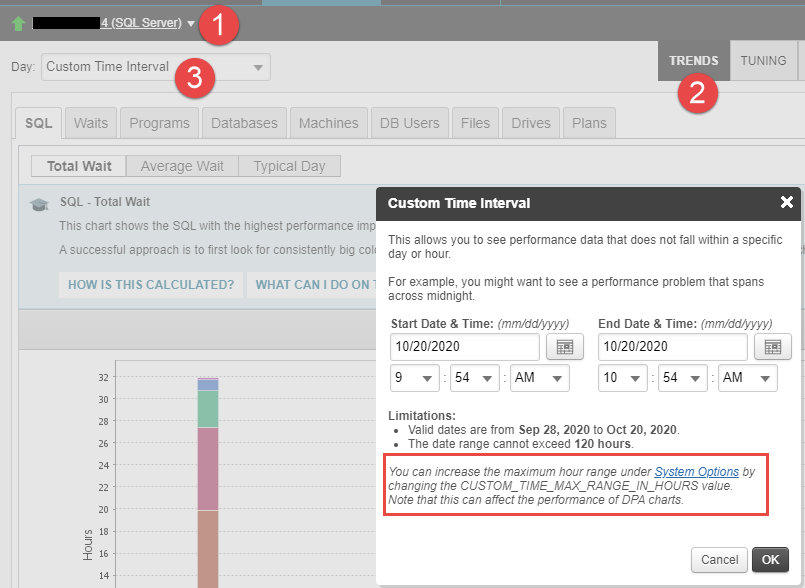
To increase it go to options -> Advanced options -> System options tab -> check the "support options" check box and search the list for CUSTOM_TIME_MAX_RANGE_IN_HOURS set that to 120.
Navigate back to the custom time range above and you can select up to 5 days.
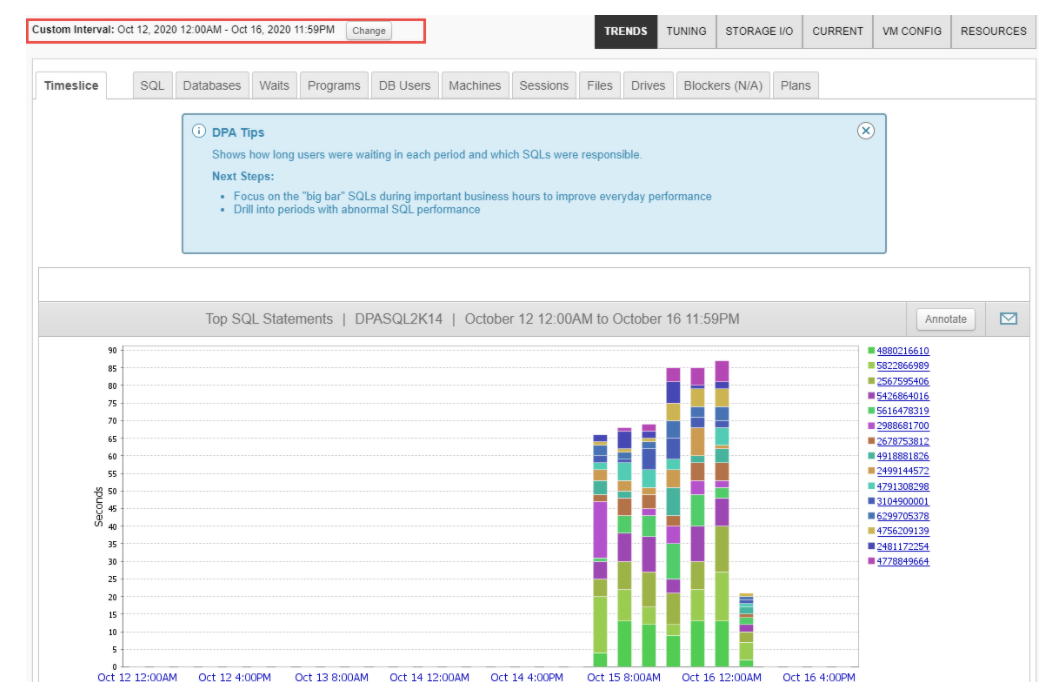
Next click on the "time slice" tab and just under the bar graph you should see a tab for "resources"
on this tab you can remove, move up and down, or add metrics that you would like to see.
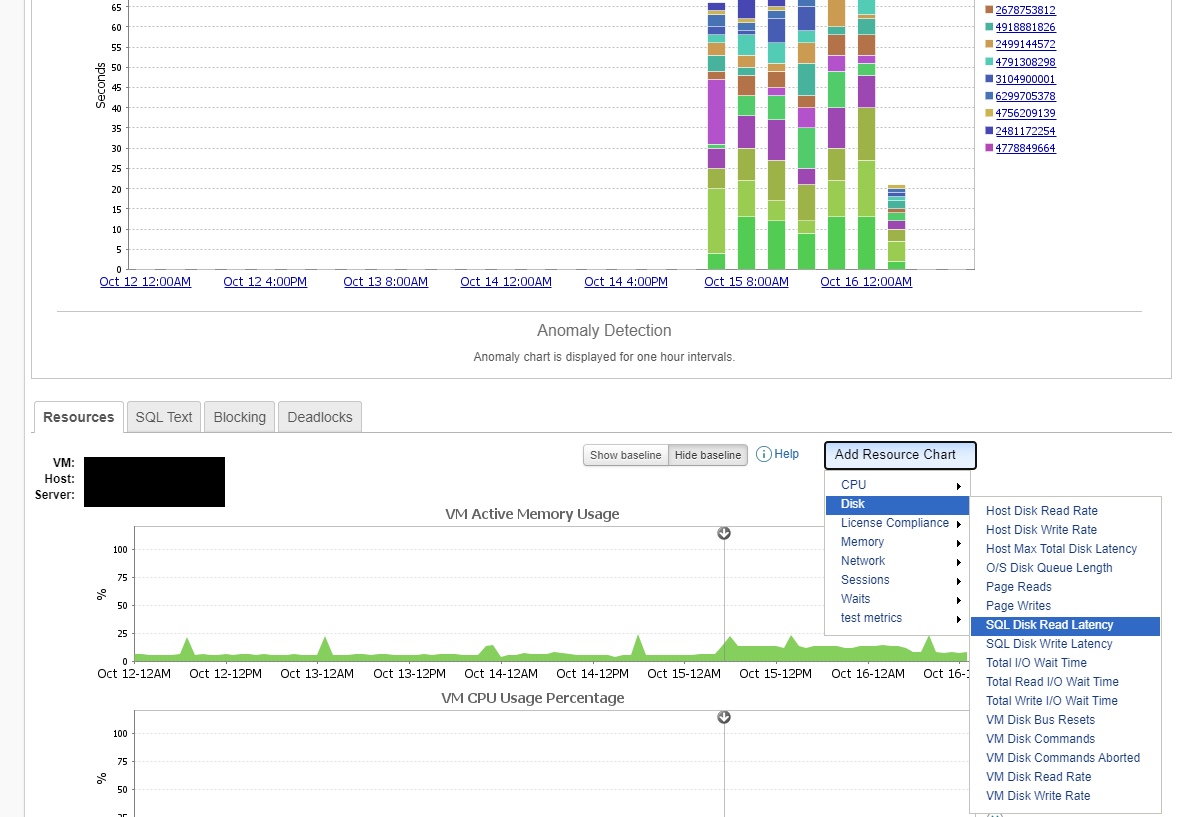
These are now filtered to this time range.
just under the instance name there is a drop down that has an option that says Day: there you will see "custom time interval" The default setting is to only load a day (24 hours) but, there is also a call out to a system option you can edit. The max you can set this item to is 5 days (120 hours).
To increase it go to options -> Advanced options -> System options tab -> check the "support options" check box and search the list for CUSTOM_TIME_MAX_RANGE_IN_HOURS set that to 120.
Navigate back to the custom time range above and you can select up to 5 days.
Next click on the "time slice" tab and just under the bar graph you should see a tab for "resources"
on this tab you can remove, move up and down, or add metrics that you would like to see.
These are now filtered to this time range.