
Tools
Disconnect the technician from Dameware Remote Everywhere (DRE) Session
This article will show you how to add an option to disconnect the technician from an online remote session.
First published date
5/4/2022 9:01 PM
Last published date
12/22/2025 9:39 PM
Overview
The DRE technician or administrators may forget to disconnect or log out of the remote session, and in doing so, it consumes a license account, especially on a limited account subscription.
It may also happen when a DRE technician, administrator, or master account tries to disconnect a particular technician's remote session. It provides this error message: "You do not have permission to disconnect this Technician."
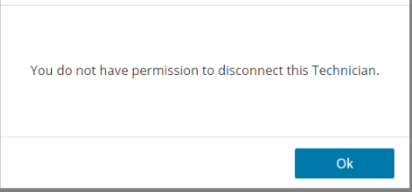
It may also happen when a DRE technician, administrator, or master account tries to disconnect a particular technician's remote session. It provides this error message: "You do not have permission to disconnect this Technician."
Product section
Dameware Remote Everywhere
Cause
The technician group permission 'Can be disconnected' is disabled.
Resolution
Ensure the DRE technician group permission setting 'Can be disconnected' is enabled
1. Log in to the DRE Web Admin area.2. Select the Technicians menu on the left-hand side of the screen.
3. Choose the Technician and click the Permission Group to open the settings, (ex. Profle_2).
4. Under the Key Permission and Defaults > MISC, the option 'Can be disconnected' must be enabled.
Notes:
- The technician can disable even the Master account remote session
- This is a group setting, so all technicians who are members of the group will have the same configuration
To disable the ongoing remote session
1. Log in to the DRE Web Admin area.2. Navigate to the Sessions menu.
3. Find the remote session then click the X button to disconnect it.