
Tools
Disable Windows lock after ending a remote session in Dameware Remote Everywhere (DRE)
An article covering steps on how to disable Windows lock after a remote session.
First published date
9/19/2019 9:38 PM
Last published date
5/19/2025 4:22 PM
Overview
After a remote session in DRE, it locks the remote machine, and the user has to login again to unlock the desktop. It is the normal behavior if the settings of the DRE agent “Lock Windows when the remote session sends” is active.
Product section
Dameware Remote Everywhere
Resolution
To apply this to a single agent:
1. Go to the lower right corner of your machine, right-click the DRE agent tray icon.
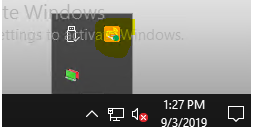
2. Select Restore.
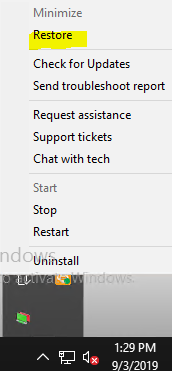
3. Click Enter Administration Mode, select Yes to continue.

4. Click the gear icon, select the Security option and then click the "Lock Windows when remote sessions end".
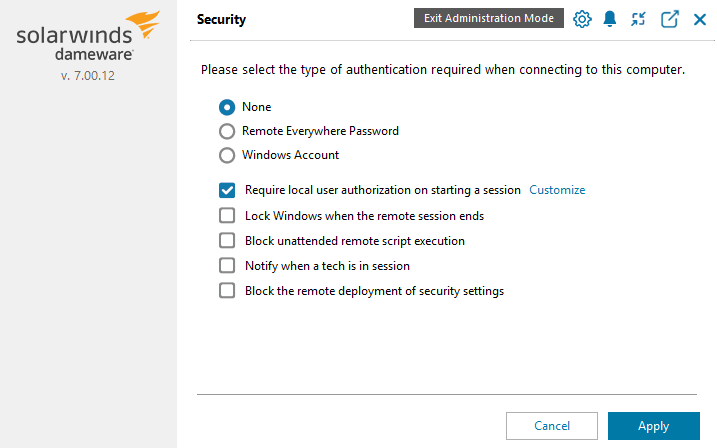
5. Click Apply.
To apply this to multiple devices, go to the Web Admin Page:
1. Web Admin Page --> Devices --> Select the Device --> Click on More, then Apply Configuration:
2. On the Apply Configuration windows, scroll down and uncheck "Lock the OS when the remote session ends" then hit Apply.
Additionally, you can use the script below to modify the agent settings without opening the agent tray and to deploy via GPO.
For 32-bit OS
"C:\Program Files\Dameware Remote Everywhere Agent\BASupSrvcCnfg.exe" /lockonsessionend:off
For 64-bit OS
"C:\Program Files (x86)\Dameware Remote Everywhere Agent\BASupSrvcCnfg.exe" /lockonsessionend:off
Notes: You can also customize the agent settings before installing the agent, so your preferred settings are set. Please proceed to Set up the agent for reference.