
Security Compliance
Delete a scheduled saved search in SEM
This article applies to Security Event Manager (formerly Log & Event Manager) and provides steps on how to delete or disable a saved search query that is scheduled by SEM users but still keep the searching and sending email alerts.
First published date
11/5/2018 10:11 PM
Last published date
4/25/2023 10:53 AM
Overview
This article applies to Security Event Manager (formerly Log & Event Manager). It provides steps to delete/un-schedule Saved Searches.
Product section
Security Event Manager
Cause
N/A
Resolution
Via HTML5 Web Console:
Via LEM's Flash Console: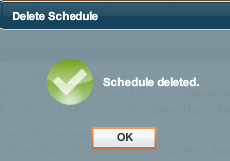
- Login to SEM's HTML5 web console.
- Go to Historical Events
- Select Queries Tab > Search for the query or just type scheduled.
- Move the cursor on the 3 dots right to the query
- Select Un-schedule or delete. (or)
- At Step 4, select "Manage saved queries"
- Refine the results with "Scheduled" filter and repeat Step 5
Via LEM's Flash Console:
- Log in to the SEM Flash Console.
- Go to the nDepth page via Explore > nDepth.
- Scroll down to the lower left to find saved searches.
- Select the saved search that is scheduled to send an email or make an internal event.
- Click the gear icon on upper right to find the Saved Searches widget.
- Select the Delete Schedule option.
- Click Yes when the Are you sure you want to delete the schedule prompt opens.
The icon for the saved search has changed to a single orange circle.
The saved search no longer has a schedule tied to it, and the search itself is still saved in the list.