
Network Management
Custom Properties missing in Report Writer
This article provides brief information and steps to resolve the issue when custom properties do not show within the Report Writer. When modifying fields or filters in Report Writer, none of the Custom Properties are listed. Custom Properties are seen in the Orion Web interface.
First published date
10/29/2018 3:40 PM
Last published date
2/16/2022 8:53 PM
Overview
When modifying fields or filters in Report Writer, none of the Custom Properties are listed. Custom Properties are seen in the Orion Web interface.
Or, no Custom Properties in Report Writer. The Orion Report Writer does not show the option to select Custom Properties fields created.
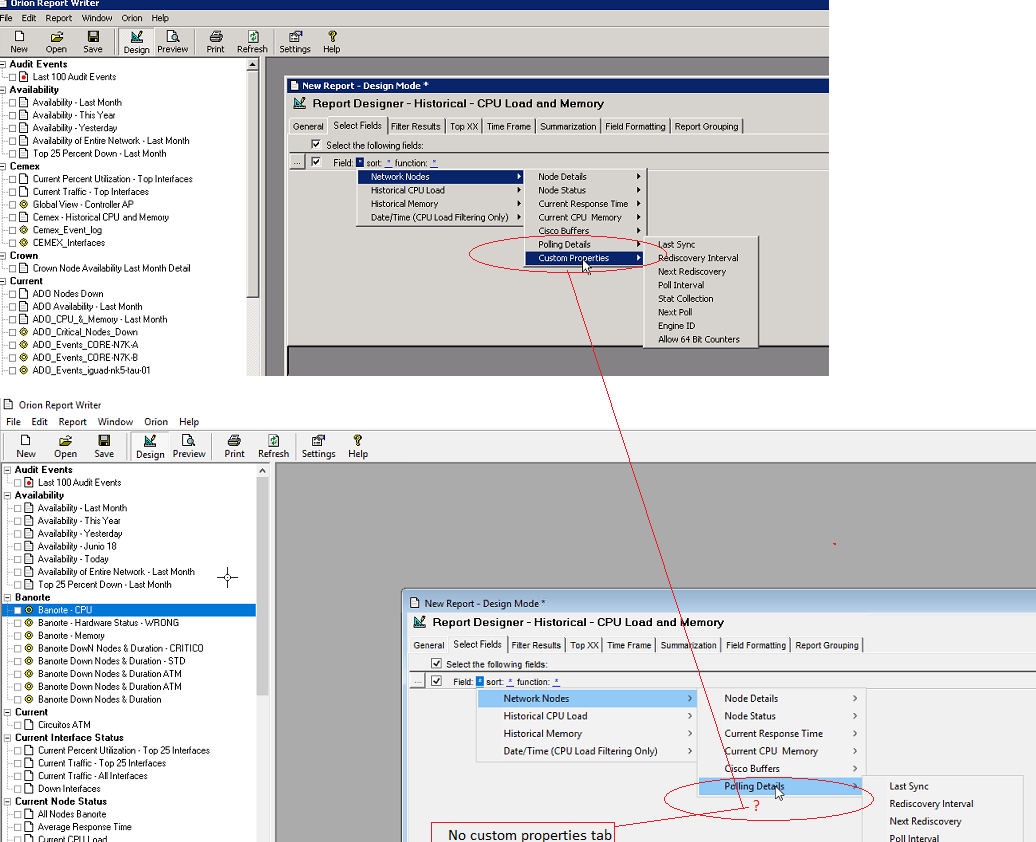
Or, no Custom Properties in Report Writer. The Orion Report Writer does not show the option to select Custom Properties fields created.
Product section
Orion Platform
Cause
This is likely caused by corrupt files.
Resolution
Solution 1:
- Add a sample Custom Property using the steps in Creating a Custom Property of the Admin Guide.
Note: The Custom Property does not need to be given values. - Once added, close and reopen the Report Writer as Admin (Right-click -> Run as administrator).
- Custom Properties should now be listed.
- Delete the Customer Property (not required).
- Stop the Orion Services
- Delete all files and folders (except for the SolarWinds folder) under
C:\Windows\Temp - Delete the following files from
C:\Program Files (x86)\SolarWinds\Orion:OrionReportWriter.cfgOrionReportWriter.exeOrionReportWriter.exe.configOrionReportWriter.schema
- Open Control Panel - Programs & Features
- Click repair SolarWinds Orion Core Services
Complete the Configuration Wizard for All three options: Website, Database, and Services
- If there is DB connection problem, then reboot Orion Server and run Config wizard.
- If still DB connection problem then you need to work with your DBA