
Database Management
Creating a Task Factory Installation Log
The purpose of this How-To Article is to assist a TF User that needs to take a deeper dive into the installation of the product for troubleshooting purposes.
First published date
7/30/2021 3:53 PM
Last published date
3/31/2025 10:36 PM
Overview
If experiencing errors when installing Task Factory, it might be necessary to create a log to document where the installer is failing.
Product section
Task Factory (TF)
Resolution
Task Factory currently uses a third-party installation tool called Advanced Installer which utilizes Windows Installer through Msiexec.exe.
To create the installation log, open a command line, navigate to the directory where the installer is located, and execute the installer with the following parameters /L*V "%DESKTOP%\TFinstall.txt"
Example C:\Users\{username}\Desktop\Logname.txt
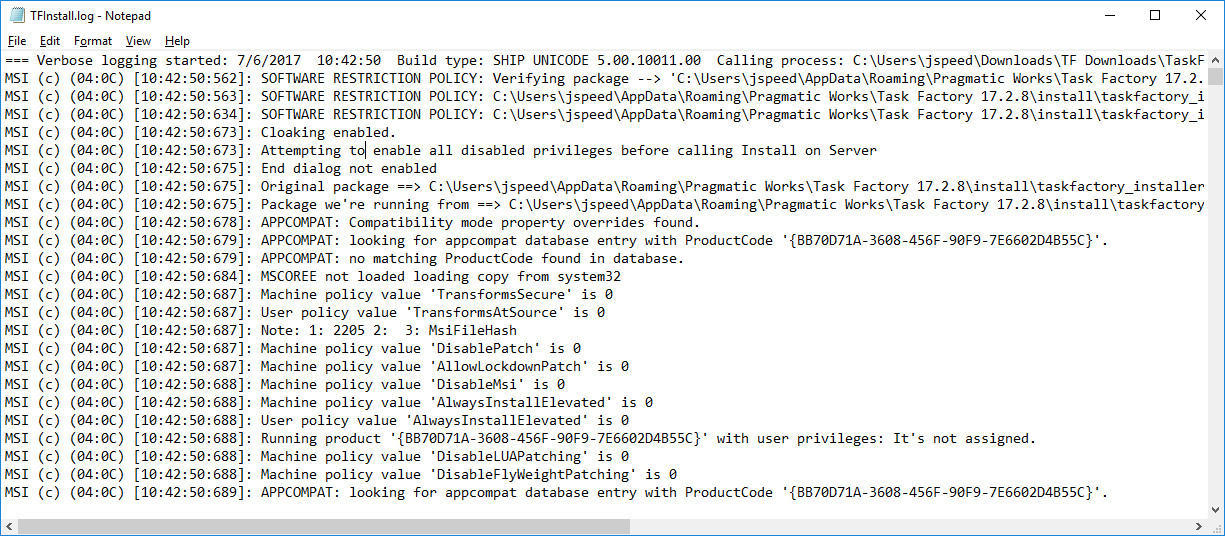
This will have the installer create a verbose log called TFinstall.log in the path you provide. Navigate to the Downloads folder %DOWNLOADS%
For example, navigate to C:\Users\{username}\Downloads\ and then execute the executable file with the parameters,
TaskFactory_2017.2.8.525.exe /L*V “C:\Users\{username}\Desktop\TFInstall.txt”

Follow the steps in the Installer GUI that will appear.
Once the installation completes (or fails again) there will be a text file named TFInstall.log in the path provided in the execution.
To create the installation log, open a command line, navigate to the directory where the installer is located, and execute the installer with the following parameters /L*V "%DESKTOP%\TFinstall.txt"
Example C:\Users\{username}\Desktop\Logname.txt
This will have the installer create a verbose log called TFinstall.log in the path you provide. Navigate to the Downloads folder %DOWNLOADS%
For example, navigate to C:\Users\{username}\Downloads\ and then execute the executable file with the parameters,
TaskFactory_2017.2.8.525.exe /L*V “C:\Users\{username}\Desktop\TFInstall.txt”
Follow the steps in the Installer GUI that will appear.
Once the installation completes (or fails again) there will be a text file named TFInstall.log in the path provided in the execution.