
Applications Systems
Create an alert for a specific transaction step
This article shows how to create an alert for a specific transaction step.
First published date
4/21/2020 5:49 PM
Last published date
4/21/2020 5:49 PM
Overview
This article shows how to create an alert for a specific transaction step and is helpful in identifying or alerting for a specific transaction step should you wish to monitor and alert on a important step in a transaction.
Product section
Web Performance Monitor
Resolution
1. Create a new alert on Settings > All Settings > Manage Alerts > Add New Alert
2. Enter the alert properties, which includes who can view the alert, severity, and how frequently the alert conditions are evaluated.
3. First, you should identify the name of the transaction step, if you think there could be a duplicate or same name as the transaction step that you would like to monitor, you may also use the Transaction ID to be more accurate on the transaction step we wanted to alert on. To identify the Transaction ID, go to the transaction step page and look for TS:(number) on the URL, it should look like something below:

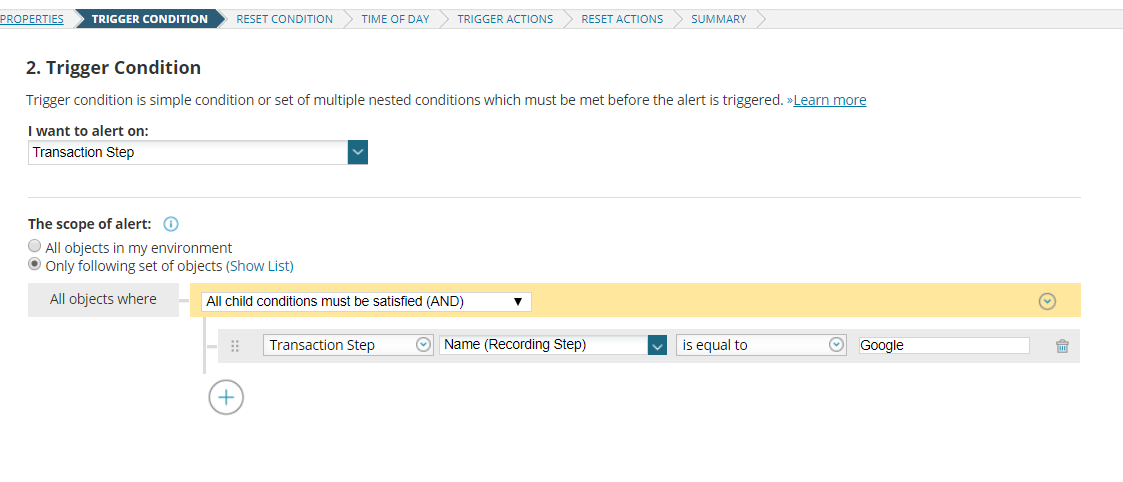
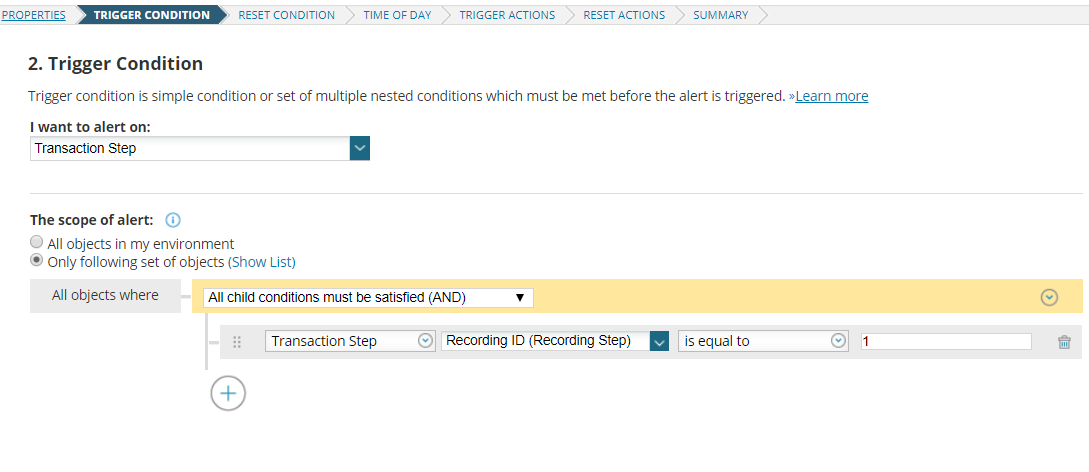
4.Add the trigger condition, using either one of "Name (Recording Step) or Recording ID (Recording Step)" will do. If you wish to use both, you would have to change the condition to OR. It should look like the screenshot below:
Or
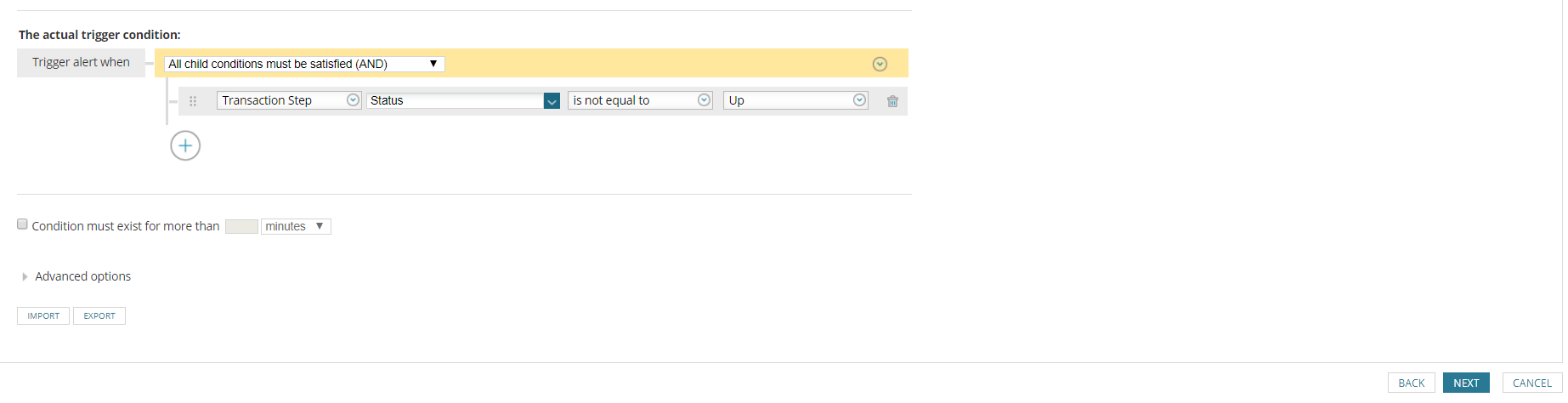
Then add the actual trigger condition and hit Next:
5.Define what event occurs to reset the alert or use the recommended option which is "Reset this alert when trigger condition is no longer true (Recommended)"
6.Schedule when you want the alert to monitor your environment.
7.Define what happens when an alert is triggered.
8.Define what happens when the alert is reset.
9.Review your alert, including the number of alerts that will be triggered based on the conditions you defined then click Submit and make sure that the alert is enabled.
2. Enter the alert properties, which includes who can view the alert, severity, and how frequently the alert conditions are evaluated.
3. First, you should identify the name of the transaction step, if you think there could be a duplicate or same name as the transaction step that you would like to monitor, you may also use the Transaction ID to be more accurate on the transaction step we wanted to alert on. To identify the Transaction ID, go to the transaction step page and look for TS:(number) on the URL, it should look like something below:
4.Add the trigger condition, using either one of "Name (Recording Step) or Recording ID (Recording Step)" will do. If you wish to use both, you would have to change the condition to OR. It should look like the screenshot below:
Or
Then add the actual trigger condition and hit Next:
5.Define what event occurs to reset the alert or use the recommended option which is "Reset this alert when trigger condition is no longer true (Recommended)"
6.Schedule when you want the alert to monitor your environment.
7.Define what happens when an alert is triggered.
8.Define what happens when the alert is reset.
9.Review your alert, including the number of alerts that will be triggered based on the conditions you defined then click Submit and make sure that the alert is enabled.