Network Management
How to create a Web-Based report for a Universal Device Poller (UnDP) on the Orion Platform
This article gives step-by-step instructions on how to create a Web-Based report from a Universal Device poller output. It can also be referred to as a Custom Poller Report or UnDP Report.
First published date
10/11/2018 10:29 AM
Last published date
10/4/2023 5:39 PM
Overview
At times, you may need to create reports from UnDPs' (Universal Device Pollers) information, sometimes referred to as a Custom Poller. The steps below detail how to create a report based on Custom Universal Device Poller (UnDP) or Custom Poller data.
Product section
Network Performance Monitor
Resolution
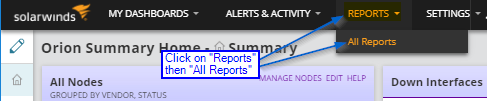
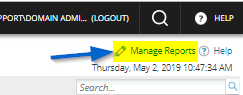
1. Navigate to Reports > All Reports > Manage Reports in the Orion Web Console.
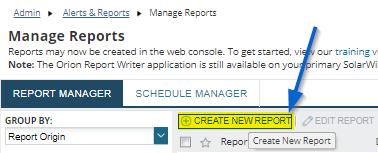
2. Click on Create New Report.
3. Select the default Custom Table (if UnDP results are in table format) or Chart (if UnDP data is in Chart format).
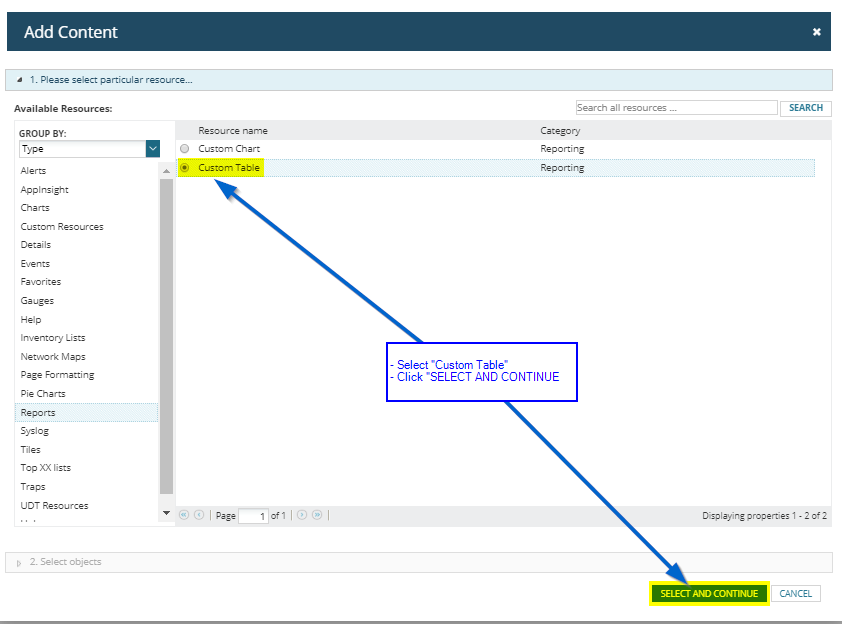
4. Using the Dynamic Query Builder, select Advanced Selector.
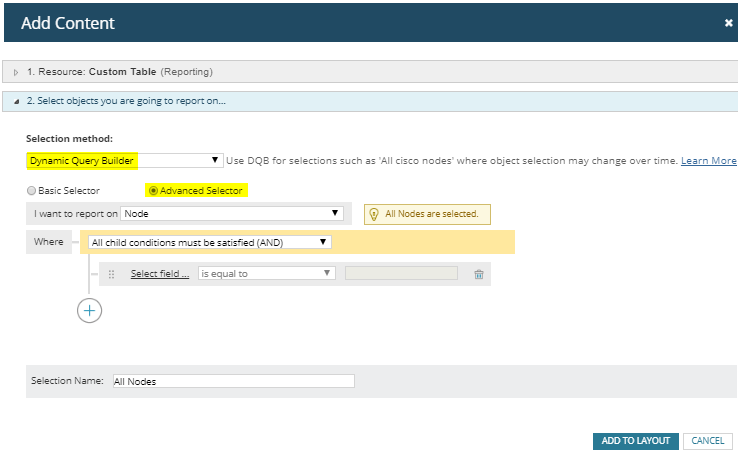
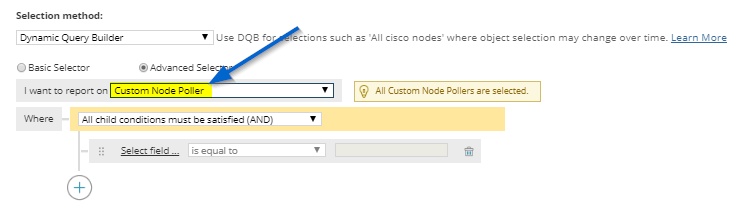
5. Select I want to report on Custom Node Poller.
6. In the Conditions, select field -> Select OID used in the UNDP
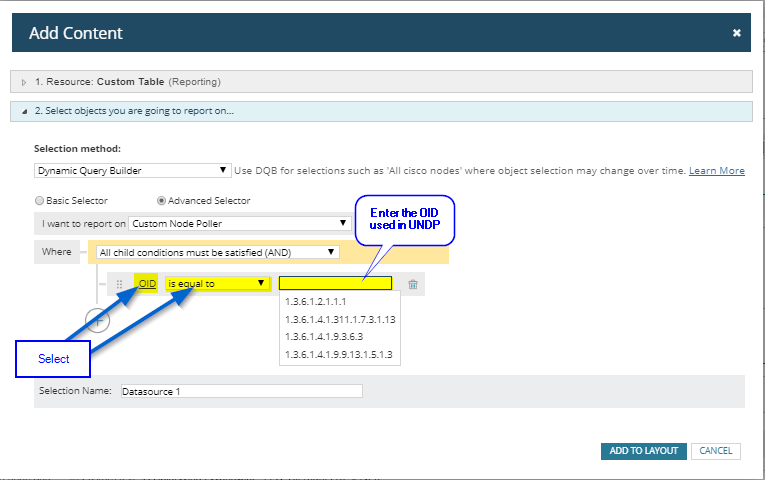
OR Unique Poller Name
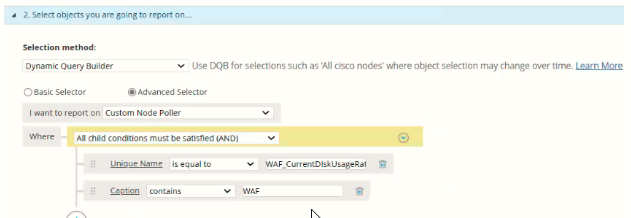
8. Add Column and select the Node> Caption and Custom Node Poller> Current Value.
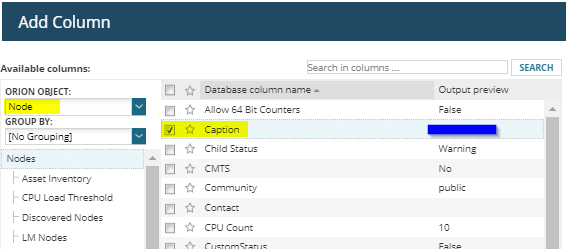
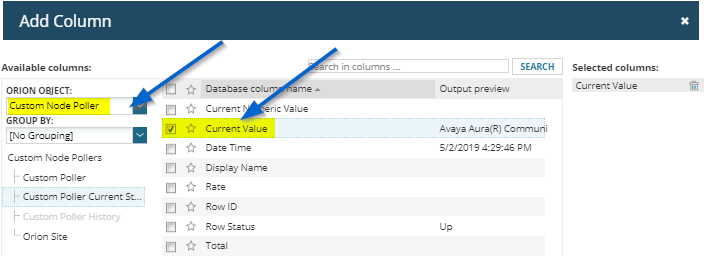
If the Current value is not showing any data, then you may want to use the Raw value field
9. Preview and adjust the report if needed.
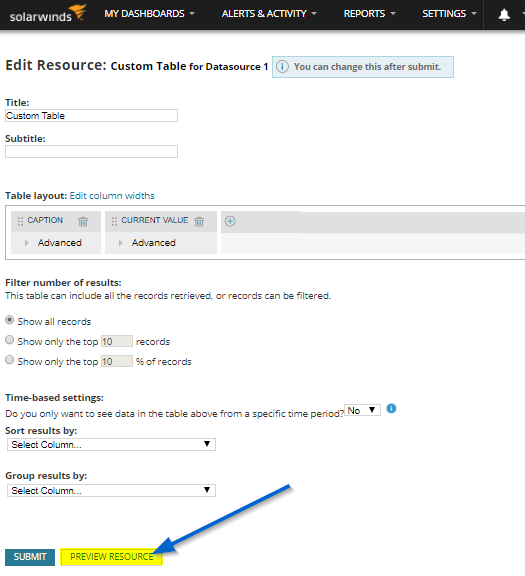
*** Preview Results *** For Custom Table based report
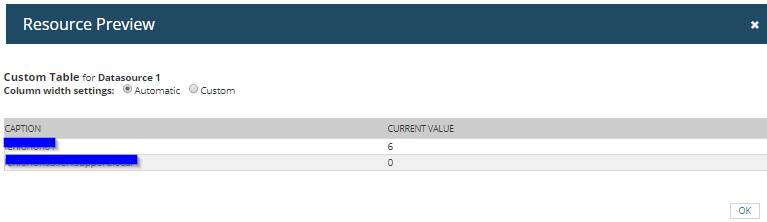
2. Click on Create New Report.
3. Select the default Custom Table (if UnDP results are in table format) or Chart (if UnDP data is in Chart format).
4. Using the Dynamic Query Builder, select Advanced Selector.
5. Select I want to report on Custom Node Poller.
6. In the Conditions, select field -> Select OID used in the UNDP
OR Unique Poller Name
8. Add Column and select the Node> Caption and Custom Node Poller> Current Value.
If the Current value is not showing any data, then you may want to use the Raw value field
9. Preview and adjust the report if needed.
*** Preview Results *** For Custom Table based report
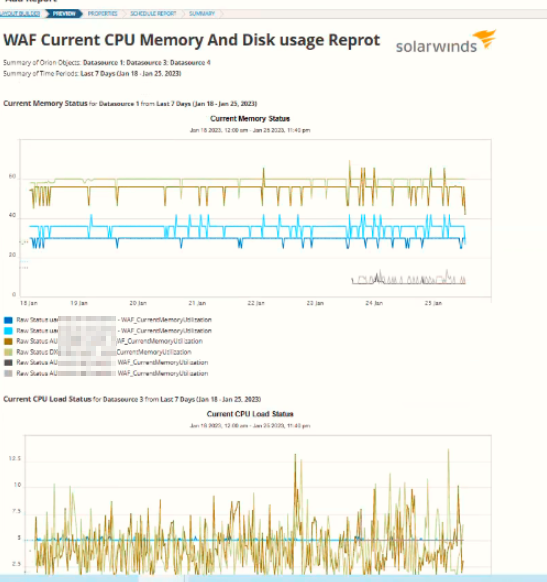
*** Preview Results for Custom Chart-based report ***