
Network Management
Create a report showing the Switch Stack Member details
This article describes how to customize a report to show the Switch Stack Member details (such as, the MAC address, switch number, serial number, among others). This is done using the Custom Table option in the Manage Reports menu.
First published date
10/11/2018 9:57 AM
Last published date
12/21/2021 2:16 PM
Overview
Using Web-Based Report in Orion Web Console, you can create a report to show the switch stack member details.
Product section
Network Performance Monitor
Resolution
1. Go to Orion Web Console > Reports > All Reports > Manage Reports > Create New Report.
2. Select Custom Table.
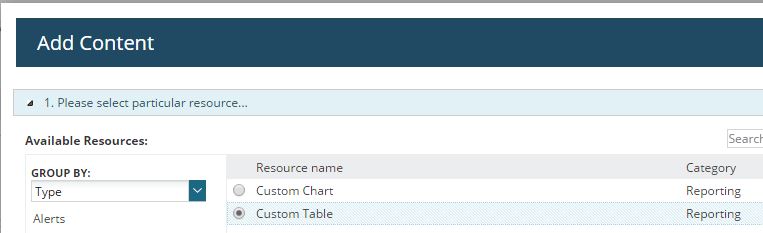
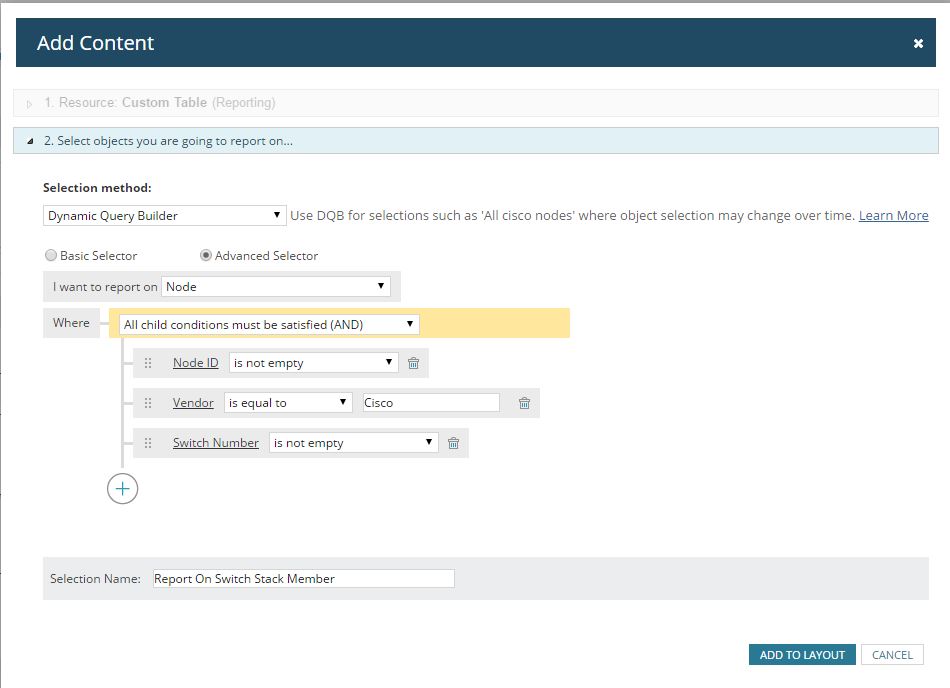
3. Set the following parameters in the Add Content page:
4. In the Add Column page:
2. Select Custom Table.
3. Set the following parameters in the Add Content page:
Where
Node ID
Vendor
Switch Number
All child conditions must be satisfied (AND)Node ID
is not emptyVendor
is equal to CiscoSwitch Number
is not empty4. In the Add Column page:
a. Select Node in the ORION OBJECT drop-down list.
b. Select [No Grouping] in the GROUP BY drop-down list, and then highlight Switch Stack Member.
c. Select the columns to be added. In this example, the Node Name, IP Address, MAC Address, Serial Number, Switch Number, and Model columns were selected.
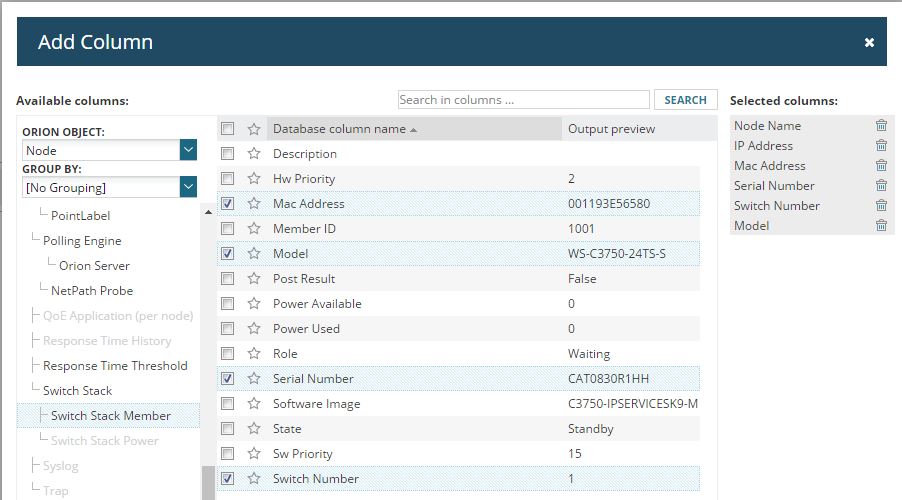
b. Select [No Grouping] in the GROUP BY drop-down list, and then highlight Switch Stack Member.
c. Select the columns to be added. In this example, the Node Name, IP Address, MAC Address, Serial Number, Switch Number, and Model columns were selected.
5. Edit the column widths according to your preference.
6. Click Preview Resource, and then click Submit.