
Tools
Configure shared remote session in Dameware MRC
Steps how to set up share remote session in Dameware MRC.
First published date
6/7/2019 11:59 PM
Last published date
6/7/2019 11:59 PM
Overview
The Dameware Mini Remote Control (MRC) is capable of sharing a remote session on one target machine. Let’s say; there are two technicians and one remote target machine, that two technicians should be able to see the same screen and at the same time can control both keyboard and mouse. Please refer to the steps below.
Product section
Dameware Remote Support & Mini Remote Control
Resolution
1. Log in to the target machine.
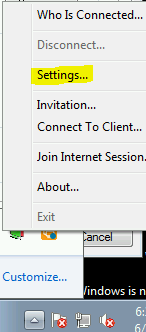
2. In the system tray, right-click the Dameware MRC agent icon, then settings.
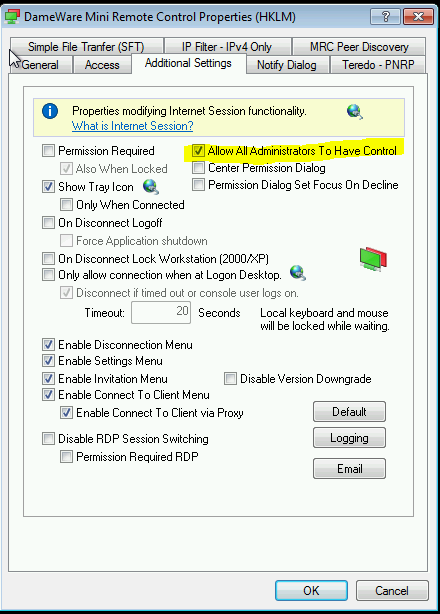
3. Go to the Additional Settings tab.
4. Select the box “Allow all administrator to have control”
Notes: You can also set this configuration when deploying an agent via the MSI package. For reference, click this link.
2. In the system tray, right-click the Dameware MRC agent icon, then settings.
3. Go to the Additional Settings tab.
4. Select the box “Allow all administrator to have control”
Notes: You can also set this configuration when deploying an agent via the MSI package. For reference, click this link.