
Tools
Configure email notification when a new user is added in Serv-U
The article describes how to send email notification using events in Serv-U when a new user is created.
First published date
7/8/2020 12:57 PM
Last published date
7/8/2020 12:57 PM
Overview
In some cases, the Serv-U administrator requires an email notification to the new user when an account is created. The email notification contains the user Login ID and the password.
Notes:
Notes:
- When creating an account make sure to provide the "Email Address" and the "Password" in the user properties
- It only applies to Serv-U Domain user and Database
Product section
Serv-U Managed File Transfer & Serv-U FTP Server
Cause
NA
Resolution
1. Log in to the Serv-U console.
2. Click the Domain level, select the Events.
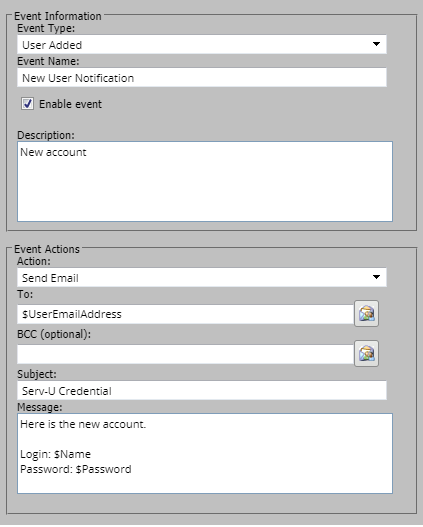
3. Click Add and then from the Event Type drop-down, select the User Added.
4. In the Event Actions, choose the Send Email.
5. In the To, set the system variable $UserEmailAddress.
6. Set the Subject line.
7. In the Message, set the body of the Email, which includes the system variable $Name and $Password.
Notes: Make sure that the SMTP server is configured already for this to work. See Serv-U SMTP Configuration.
2. Click the Domain level, select the Events.
3. Click Add and then from the Event Type drop-down, select the User Added.
4. In the Event Actions, choose the Send Email.
5. In the To, set the system variable $UserEmailAddress.
6. Set the Subject line.
7. In the Message, set the body of the Email, which includes the system variable $Name and $Password.
Notes: Make sure that the SMTP server is configured already for this to work. See Serv-U SMTP Configuration.