
Tools
Configure Serv-U home directory to use Microsoft Azure storage
How to configure the Serv-U home directory with Microsoft Azure storage.
First published date
5/14/2019 5:38 PM
Last published date
8/28/2023 10:00 PM
Overview
In some cases, the user wants to use Microsoft Azure storage as the home directory. Here is the scenario:
- Serv-U server hosted in Azure
- Serv-U is just Workgroup
- Azure storage is not a member of any domain
Product section
Serv-U Managed File Transfer & Serv-U FTP Server
Resolution
1. Log in to the Serv-U server as local admin.
2. Follow the procedure in the Mount SMB Azure file share on Windows.
3. Open a command line and run cmdkey /list. See the sample below.
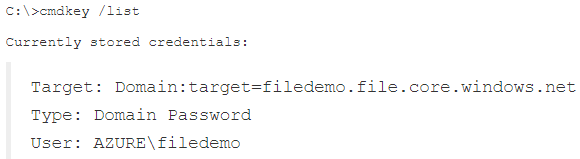
5. Use the results when configuring directory access in Serv-U access as a Windows user. See the sample below.
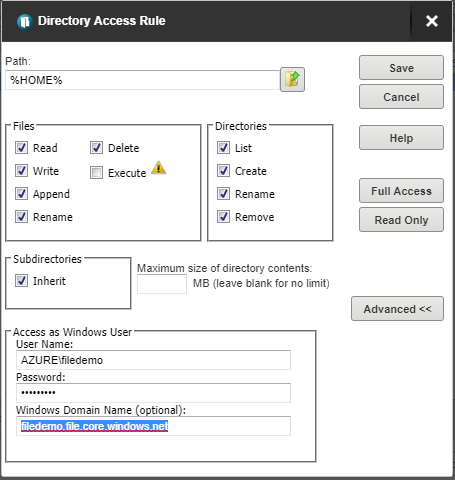
6. Click save and then save again.
2. Follow the procedure in the Mount SMB Azure file share on Windows.
3. Open a command line and run cmdkey /list. See the sample below.
5. Use the results when configuring directory access in Serv-U access as a Windows user. See the sample below.
6. Click save and then save again.