
Tools
Configure Serv-U SMTP with Gmail
This article shows how to configure Serv-U SMTP with Gmail
First published date
8/20/2020 11:36 PM
Last published date
8/20/2020 11:36 PM
Overview
Serv-U supports Gmail as the SMTP server to process outgoing emails for Events, File Sharing and other tasks.
Product section
Serv-U Managed File Transfer & Serv-U FTP Server
Resolution
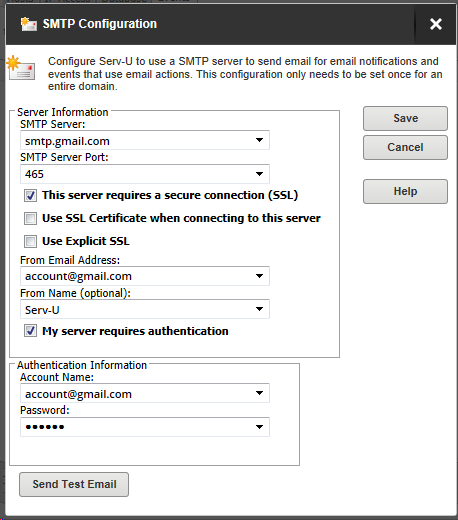
Configure Gmail in Serv-U
Possible issues:
- Launch Serv-U Management Console
- Go to Domains > Limits & Settings > Events tab > click the Configure SMTP button at the lower right corner of the page
- Use the values below:
SMTP Server: smtp.gmail.com
SMTP Server Port: 465
Enable 'This server requires a secure connection (SSL)'
From Email Address: use the gmail account address
From Name: This can be anything. This is the label that shows as the email sender once the email is sent from Serv-U
Enable 'My server requires authentication'
Account Name: use the gmail account address
Password: Password of the gmail account
SMTP Server Port: 465
Enable 'This server requires a secure connection (SSL)'
From Email Address: use the gmail account address
From Name: This can be anything. This is the label that shows as the email sender once the email is sent from Serv-U
Enable 'My server requires authentication'
Account Name: use the gmail account address
Password: Password of the gmail account
Possible issues:
- Unable to send a test email with error: "535-5.7.8 Username and Password not accepted. Learn more at 535 5.7.8 https://support.google.com/mail/?p=BadCredentials s17sm3573089pgm.63 - gsmtp"
- This can be resolved by enabling the Less Secure App option for the Gmail account.