
Security Compliance
Configure file integrity monitoring on Linux using auditd with SEM
This article provides FIM configuration examples for Linux systems using the auditing component, auditd, with SEM (formerly Log & Event Manager).
First published date
11/27/2019 2:11 PM
Last published date
5/14/2025 5:59 PM
Overview
Auditd is a dynamic Linux auditing component that facilitates monitoring file access and process execution on your system.
To get started, create rules in auditd, deploy the Linux agent to your node, and enable the auditd connector in SEM.
Once your basic configuration is established, you can watch for FIM events on Linux using SEM by creating filters to watch for events, and creating rules to trigger on auditd activity.
To get started, create rules in auditd, deploy the Linux agent to your node, and enable the auditd connector in SEM.
Once your basic configuration is established, you can watch for FIM events on Linux using SEM by creating filters to watch for events, and creating rules to trigger on auditd activity.
Product section
Security Event Manager
Cause
N/A
Resolution
To get started, add three basic rules to auditd on your Linux node. Use the command auditctl, and then pass in some arguments to complete the task.
sudo auditctl -w /bin/rm -p x -k rm
sudo auditctl -w /bin/touch -p x -k touch
sudo auditctl -w /sem-test -p rwxa -k sem-test-folder
Command line definitions:
-w specifies the file or folder you want to watch
-p specifies the activity you want to watch (read, write, execute, append)
-k creates a tag which you can use in conjunction with another command, ausearch, to quickly verify your rule is working
Note: you can verify your rules were accepted into the auditd config by issuing the command auditctl -l.

Next, enable the auditd connector on your Linux node in SEM.
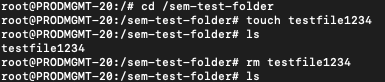
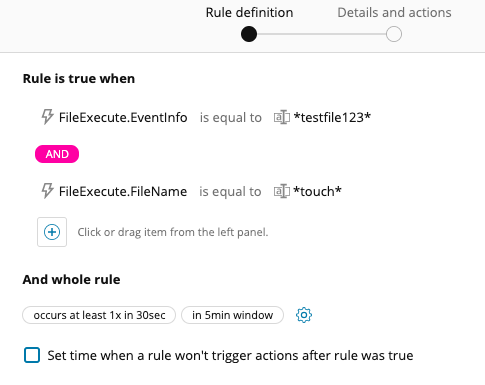
This procedure serves as a basic example to get you started. Create filters and more complex rules to target specific activity in your environment.
sudo auditctl -w /bin/rm -p x -k rm
sudo auditctl -w /bin/touch -p x -k touch
sudo auditctl -w /sem-test -p rwxa -k sem-test-folder
Command line definitions:
-w specifies the file or folder you want to watch
-p specifies the activity you want to watch (read, write, execute, append)
-k creates a tag which you can use in conjunction with another command, ausearch, to quickly verify your rule is working
Note: you can verify your rules were accepted into the auditd config by issuing the command auditctl -l.
Next, enable the auditd connector on your Linux node in SEM.
- In the SEM HTML5 console, click the Nodes tab.
- In the Refine Results pane, expand the Type group, and then select Agent.
- In the agent list, select an agent, and then click Manage node connectors on the toolbar.
- In the search box, enter auditd.
- Select the Linux Auditd connector, and then click Add Connector.
- Ensure the name and log file path are correct, and then click Add.
- Under Configured connectors, select your Linux Auditd connector, and then click Start.
To search for your events, click the Events tab in the HTML5 SEM Events Console.
Note: These events are passed along as FileExecute rather than FileDelete or FileCreate, the way FIM for Windows does.
This procedure serves as a basic example to get you started. Create filters and more complex rules to target specific activity in your environment.