
Tools
Configure Dameware Remote Everywhere (DRE) technician to receive only their support request generated
Learn how to configure DRE technician support request default settings.
First published date
4/19/2021 6:43 PM
Last published date
5/10/2021 9:09 PM
Overview
By default, when a technician generates a support request link or attends a session, the request will go to the Global Queue. Thereby casing all technician to get notifications about the mentioned support request.
This may create some confusion for other technicians and they may respond to the support request even it is not meant for them. To prevent this scenario, see the procedure below.
This may create some confusion for other technicians and they may respond to the support request even it is not meant for them. To prevent this scenario, see the procedure below.
Product section
Dameware Remote Everywhere
Cause
NA
Resolution
1. Log in to the Admin area.
2. Navigate to the Management menu, select Technicians.
3. Select the Technician, click the Default Settings tab.
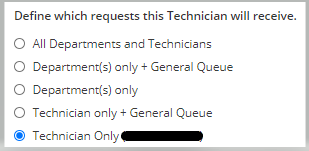
4. In the "Define which requests this Technician will receive" set it to Technician only.
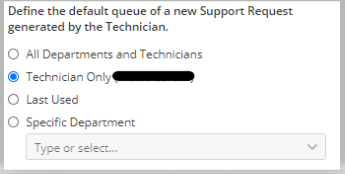
5. In the "Define the default queue of a new Support Request generated by the Technician" set it to Technician only.
6. Save.
Notes: Do it also for the other Technician's profile.
2. Navigate to the Management menu, select Technicians.
3. Select the Technician, click the Default Settings tab.
4. In the "Define which requests this Technician will receive" set it to Technician only.
5. In the "Define the default queue of a new Support Request generated by the Technician" set it to Technician only.
6. Save.
Notes: Do it also for the other Technician's profile.