
Tools
Check the Existing License and Expiration Date Information in DRE
This document provides steps for checking the existing license count and expiration date for your company.
First published date
4/22/2019 9:58 PM
Last published date
9/1/2022 4:26 PM
Overview
There is a special term of licensing with Damerware Remote Everywhere or DRE.
We have the Number of Concurrent Licenses, the Number of Ends User licenses, and the Maximum number of Unattended Agents.
The Number of Concurrent Licenses is what the customer purchased.
This is the number of available Technicians and Admins that can use concurrently.
Admin/Master Admin is limited to one account only.
The customers can create as many Technicians as they can but they can only have concurrent technicians using the DRE depending on the number of licenses they purchased.
Moreover, they should also take note of how they use the DRE Web Admin and DRE Console.
Once a technician logs in to DRE Web Admin Page, if the Remote Control icon( ) is on, it will incur 1 license.
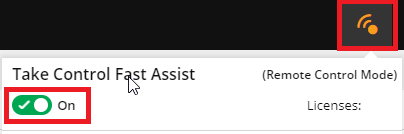
If the same technician/account logs in to DRE Console, it will also incur another license.
Number of End User licenses
This is the license that comes with the purchased Number of Concurrent Licenses that has a ratio of 1:10.
Meaning that 1 Concurrent License is equal to 10 End-User.
The End User has limited access but can do a remote session and does not consume a concurrent license upon doing a remote session.
Log in page as follows: https://enduser.us0.swi-dre.com
This license cannot be bought separately and they need to purchase other Concurrent Licenses if the customer wanted to increase this license.
Please take note that the end-user remote session has a limitation and can only access up to 10 machines as granted by the DRE Master Admin.
Maximum number of Unattended Agents
This is the number of Devices you can deploy your agent.
We have the of 1:500, meaning 1 Concurrent License is equal to 500 machines that can be accessed remotely using DRE.
We have the Number of Concurrent Licenses, the Number of Ends User licenses, and the Maximum number of Unattended Agents.
The Number of Concurrent Licenses is what the customer purchased.
This is the number of available Technicians and Admins that can use concurrently.
Admin/Master Admin is limited to one account only.
The customers can create as many Technicians as they can but they can only have concurrent technicians using the DRE depending on the number of licenses they purchased.
Moreover, they should also take note of how they use the DRE Web Admin and DRE Console.
Once a technician logs in to DRE Web Admin Page, if the Remote Control icon(
If the same technician/account logs in to DRE Console, it will also incur another license.
Number of End User licenses
This is the license that comes with the purchased Number of Concurrent Licenses that has a ratio of 1:10.
Meaning that 1 Concurrent License is equal to 10 End-User.
The End User has limited access but can do a remote session and does not consume a concurrent license upon doing a remote session.
Log in page as follows: https://enduser.us0.swi-dre.com
This license cannot be bought separately and they need to purchase other Concurrent Licenses if the customer wanted to increase this license.
Please take note that the end-user remote session has a limitation and can only access up to 10 machines as granted by the DRE Master Admin.
Maximum number of Unattended Agents
This is the number of Devices you can deploy your agent.
We have the of 1:500, meaning 1 Concurrent License is equal to 500 machines that can be accessed remotely using DRE.
Product section
Dameware Remote Everywhere
Cause
NA
Resolution
- Log ing to DRE Admin Page
- Go to Management
- Select Licenses
- Click the Details Tab