
Tools
Change the default PostgreSQL database credentials using PgAdmin4 in Web Help Desk (WHD)
This guide aims to provide instructions on how to change the PostgreSQL database credentials using pgAdmin4.
First published date
10/17/2022 6:46 PM
Last published date
10/17/2022 6:46 PM
Overview
In some cases during the upgrade wherein the WHD database was upgraded from pgSQL9 to pgSQL13 without changing the credentials, a yellow banner is present upon pressing the Setup menu.

To remove this banner and secure the database, a change of database credentials is necessary.
To remove this banner and secure the database, a change of database credentials is necessary.
Product section
Web Help Desk
Resolution
Login to WHD
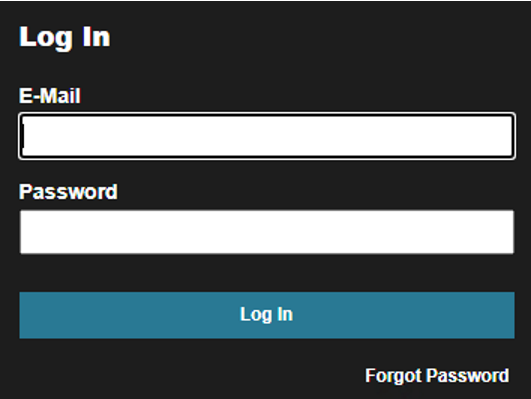
1. Log in to WHD as an administrator.
Create a new login role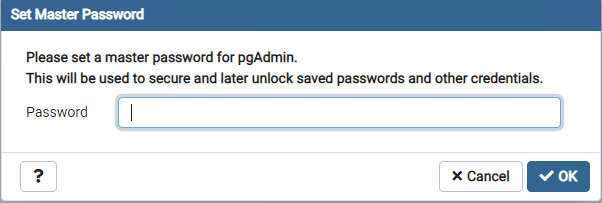
4. Set the following: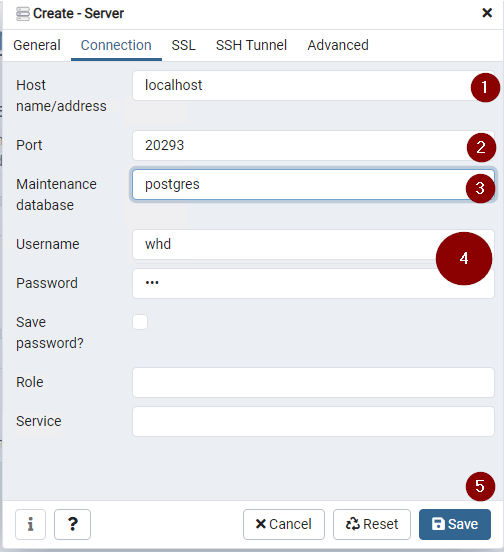
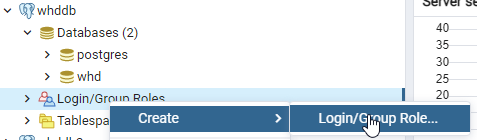
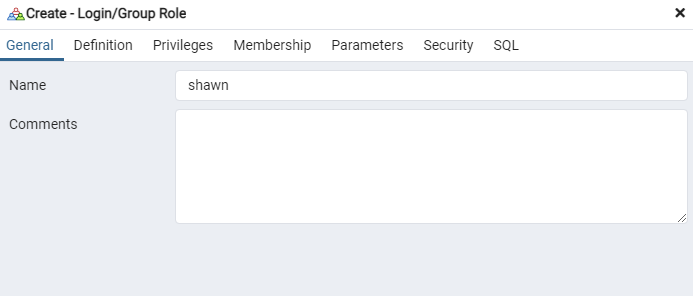
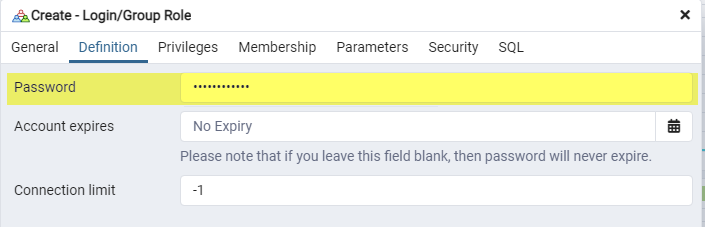
10. Verify that your new login role has the same privileges as the whd database role.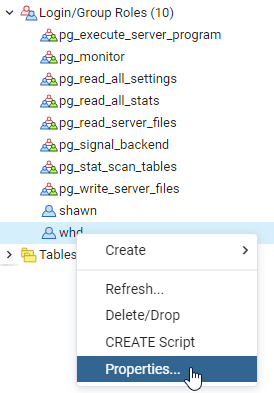
Change the WHD database ownership
All backups are created based on the backup schedule and named based on the backup time. For example, a scheduled backup performed on March 17, 2021 at 2:30 AM would be named as follows:
B_2021_03_17-02_30_00
Verify the new database connection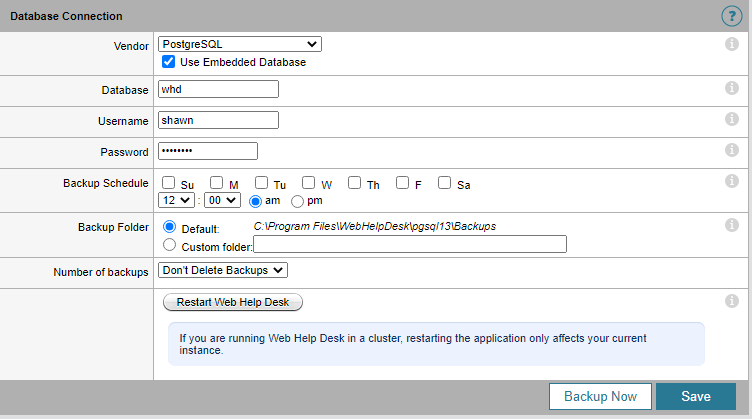
1. Log in to WHD as an administrator.
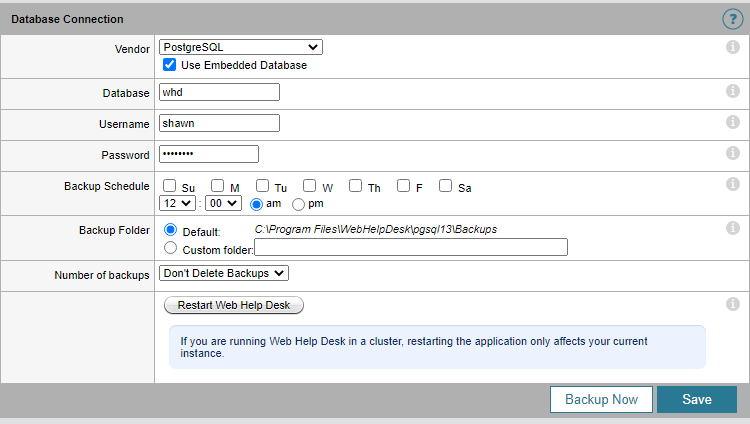
2. Click Setup > General > Database.
The Database Connection screen displays in the console.
The Database Connection screen displays in the console.
3. Click Backup Now to back up your PostgreSQL database.
A message displays in the console, stating that your database was backed up to:
<WebHelpDesk>/pgsq9/Backups
4. Leave this screen open. Do not close this screen or log out of WHD.
A message displays in the console, stating that your database was backed up to:
<WebHelpDesk>/pgsq9/Backups
4. Leave this screen open. Do not close this screen or log out of WHD.
Create a new login role
1. Open pgAdmin4 as Administrator:
Location: <WebHelpDesk>\pgsql13\pgAdmin 4\bin\pgAdmin4.exe
2. Setup a master password (keep this password in your notes because you will be needing this every time you launch pgAdmin.4)
3. Click add server
4. Set the following:
- On the General Tab, decide for a connection name: (Example: whddb)
- On the connection tab, set the following:
- In the Host field, enter localhost, as the PostgreSQL database is stored on the WHD server.
- In the Port field, enter 20293. This is the default port for communications with the PostgreSQL database.
- Click the Maintenance DB type postgres.
- In the Username and password fields, enter whd. These are the original database credentials created during the installation procedure. You will replace these credentials in a later step.
- Click Save
5. Right-click on the Login/Group Roles > Create > Login/Group Role
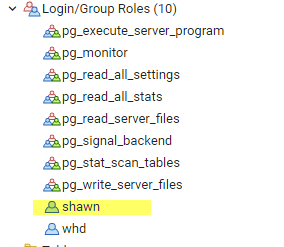
6. Enter a name for the new Login/Group Role. (Example: shawn)
7. In the Definition tab, set a password.
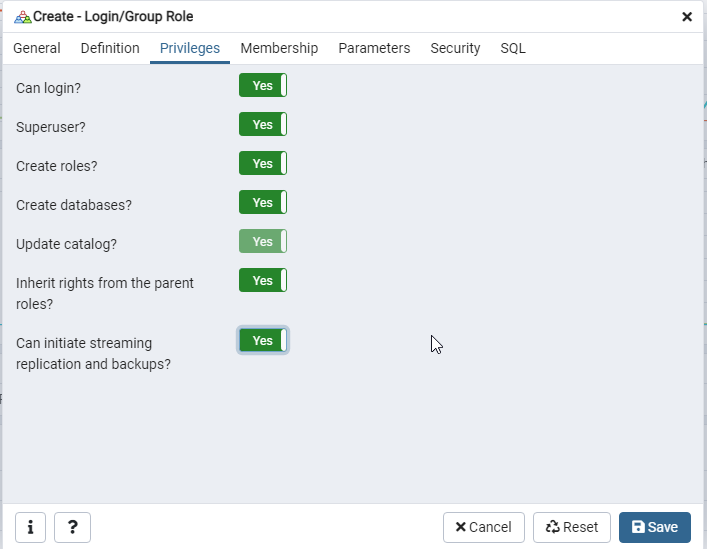
8. In the Privileges tab, set all privileges to YES and press SAVE
9. You will see that the new role is added to the login/group list.
10. Verify that your new login role has the same privileges as the whd database role.
- Under Login Roles, right-click whd and select Properties.
- Click the Privileges tab.
- Confirm that the Role privileges for the whd role matches with your newly created login role.
- Click Cancel.
Change the WHD database ownership
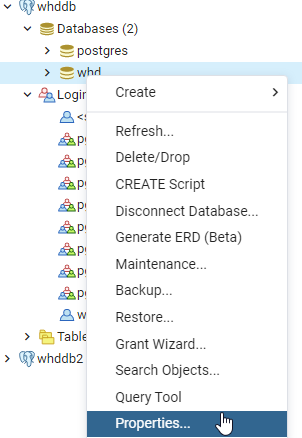
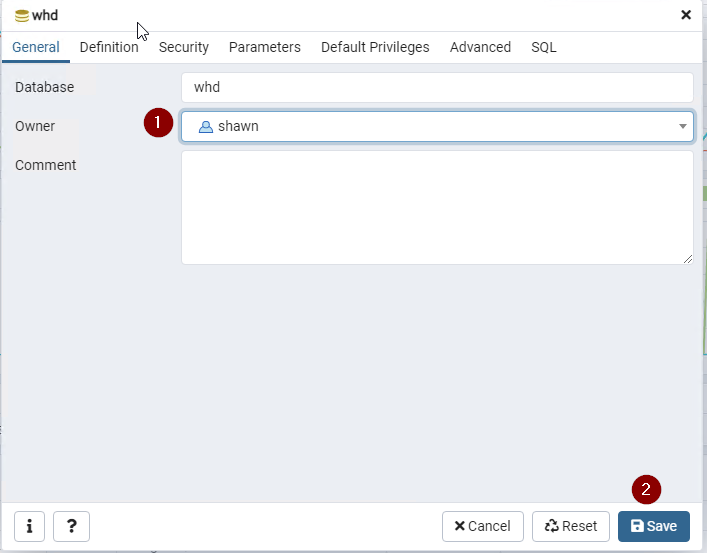
1. Right-click on the WHD database and click Properties.
2. Choose the new login role as the owner of the database whd and click Save. In this example, we chose the shawn login role.
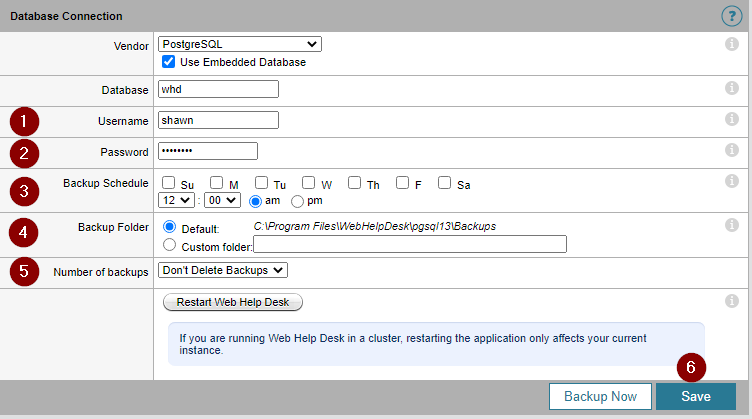
3. Go back to the WHD interface and go to Setup > General > Database
4. Set the following:
- Update the username (1) and password (2) that you have created from the new login role in pgAdmin4.
- OPTIONAL: Select your backup options (3) select the days of the week and the time of day when WHD will automatically back up your database.
- OPTIONAL: In the Backup Folder field (4), select a backup folder or accept the default section.
All backups are created based on the backup schedule and named based on the backup time. For example, a scheduled backup performed on March 17, 2021 at 2:30 AM would be named as follows:
B_2021_03_17-02_30_00
| It is your responsibility to copy the database backup files to a network or tape drive. Perform all backups before applying any update to Web Help Desk. |
- Click the drop-down menu and select the number of backups (5).
- Click Save (6)
5. Restart WHD
Verify the new database connection
- After Restart,
- Log in to WHD as an administrator.
- Click Setup > General > Database.
- In the Database Connection screen, verify that the Username field contains the new login role.