
Security Compliance
Change ARM basic configuration after the service account password change
This article will explain how you can change the basic configuration of the ARM server in case you have restarted the password of the ARM service account.
First published date
6/10/2022 7:49 AM
Last published date
6/10/2022 7:49 AM
Overview
Following this article, you will be able to change the basic configuration in the event of the password restart of the ARM service account.
Product section
Access Rights Manager
Cause
The result of the restarted ARM service account password will be that login to ARM and ARM server startup will not be possible.
The login error message can look like this:
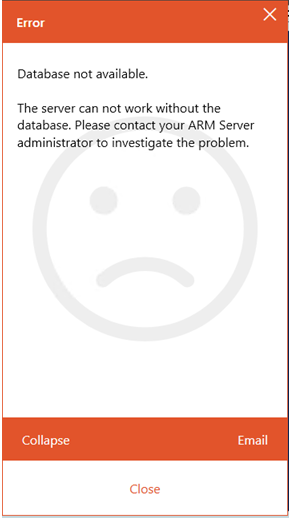
The login error message can look like this:
Resolution
The solution is to delete the configured credentials from C:\ProgramData\protected-networks.com\8MAN\cfg\pnServer.config.xml file.
The lines that we are looking for are:
You cannot just change the password here because the password value is hashed.
After the change, save the file and restart the ARM service.
Once your ARM service is restarted, log in to the ARM with the ARM Configuration client.
ARM Configuration client will open a basic configuration this time, allowing you to set the account again.
Please follow this documentation to do so.
Once done, your ARM is configured again and ready for work.
The lines that we are looking for are:
<credentials>
<domain>ARM</domain>
<user>arm</user>
<password>
</password>
<password2>AkFu9BiqGky3(3[(2E&/)2l1iTGDMoIg==</password2>
</credentials>
From these lines, please delete the values for the <domain> and for the <password2>.You cannot just change the password here because the password value is hashed.
After the change, save the file and restart the ARM service.
Once your ARM service is restarted, log in to the ARM with the ARM Configuration client.
ARM Configuration client will open a basic configuration this time, allowing you to set the account again.
Please follow this documentation to do so.
Once done, your ARM is configured again and ready for work.