
Tools
Unable to log in to Web Help Desk with a demo or expired license using an administrator account
This article shows how to resolve a problems where an administrator account cannot log in to Web Help Desk with a demo or expired license
First published date
5/27/2020 12:09 AM
Last published date
5/27/2020 12:09 AM
Overview
When Web Help Desk using a demo or expired license, only one technician account can log in. This will prevent registering a working license because the administrator cannot log in to apply it.
The administrator will get an error saying: This account has been deactivated if they try to log in using one of the inactive technician accounts.
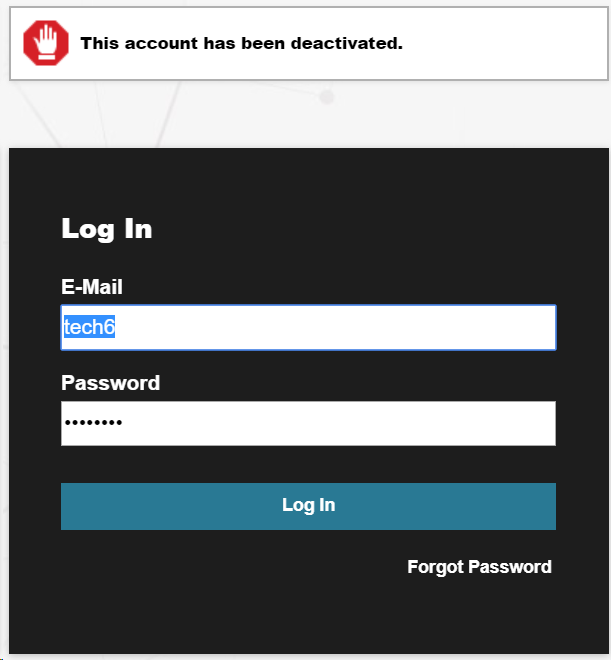
The administrator will get an error saying: This account has been deactivated if they try to log in using one of the inactive technician accounts.
Product section
Web Help Desk
Cause
When in demo or expired license state, Web Help Desk will deactivate all technician accounts but one.
Resolution
One of the administrator accounts need to be activated through the Web Help Desk database.
The problem here is that, even if the query to activate the account is executed, Web Help Desk will still decide to deactivate it if there are two active accounts at the same time.
Running two SQL queries should resolve this problem.
1st SQL query - this is to make sure that ALL technician accounts are set to inactive.
2nd query - this is to set the default admin account to active and be used to log in to Web Help Desk, to register a working license and to active other technician accounts.
Then login to Web Help Desk using these credentials:
Username: admintemp
Password: admintemp
After logging in using the administrator account, register a working license by going to Setup > General : License > then click the lock icon > then apply the license.
Once done, you should still be in the License page and you need to check the box beside the names of the technicians that should be activated. Then the technicians can try to log in to Web Help Desk.
Disclaimer: Scripts are not supported under any SolarWinds support program or service. Scripts are provided AS IS without warranty of any kind. SolarWinds further disclaims all warranties including, without limitation, any implied warranties of merchantability or of fitness for a particular purpose. The risk arising out of the use or performance of the scripts and documentation stays with you. In no event shall SolarWinds or anyone else involved in the creation, production, or delivery of the scripts be liable for any damages whatsoever (including, without limitation, damages for loss of business profits, business interruption, loss of business information, or other pecuniary loss) arising out of the use of or inability to use the scripts or documentation.
The problem here is that, even if the query to activate the account is executed, Web Help Desk will still decide to deactivate it if there are two active accounts at the same time.
Running two SQL queries should resolve this problem.
1st SQL query - this is to make sure that ALL technician accounts are set to inactive.
# Scripts are provided AS IS without warranty of any kind. SolarWinds further disclaims all warranties including, without limitation, any implied warranties of merchantability or of fitness for a particular purpose.
# The risk arising out of the use or performance of the scripts and documentation stays with you.
# In no event shall SolarWinds or anyone else involved in the creation, production, or delivery of the scripts be liable for any damages whatsoever (including, without limitation, damages for loss of business profits, business interruption, loss of business information, or other pecuniary loss) arising out of the use of or inability to use the scripts or documentation.

========================================================================

UPDATE TECH
SET INACTIVE = 1 WHERE INACTIVE = 0;
2nd query - this is to set the default admin account to active and be used to log in to Web Help Desk, to register a working license and to active other technician accounts.
# Scripts are provided AS IS without warranty of any kind. SolarWinds further disclaims all warranties including, without limitation, any implied warranties of merchantability or of fitness for a particular purpose.
# The risk arising out of the use or performance of the scripts and documentation stays with you.
# In no event shall SolarWinds or anyone else involved in the creation, production, or delivery of the scripts be liable for any damages whatsoever (including, without limitation, damages for loss of business profits, business interruption, loss of business information, or other pecuniary loss) arising out of the use of or inability to use the scripts or documentation.

========================================================================

UPDATE TECH
SET USER_NAME='admintemp', PASSWORD='admintemp', use_ldap_authentication=0, INACTIVE=0, INCORRECT_AUTH_ATTEMPTS=0
where CLIENT_ID=1;
Then login to Web Help Desk using these credentials:
Username: admintemp
Password: admintemp
After logging in using the administrator account, register a working license by going to Setup > General : License > then click the lock icon > then apply the license.
Once done, you should still be in the License page and you need to check the box beside the names of the technicians that should be activated. Then the technicians can try to log in to Web Help Desk.
Disclaimer: Scripts are not supported under any SolarWinds support program or service. Scripts are provided AS IS without warranty of any kind. SolarWinds further disclaims all warranties including, without limitation, any implied warranties of merchantability or of fitness for a particular purpose. The risk arising out of the use or performance of the scripts and documentation stays with you. In no event shall SolarWinds or anyone else involved in the creation, production, or delivery of the scripts be liable for any damages whatsoever (including, without limitation, damages for loss of business profits, business interruption, loss of business information, or other pecuniary loss) arising out of the use of or inability to use the scripts or documentation.