
Network Management
Authenticode verification UnknownError in the offline installer during the upgrade to Orion Platform 2020.2.4 or higher
In specific environments, Authenticode verification UnknownError caused by an issue with Windows Trusted Root Certificates could occur in the Offline Installer during the upgrade to Orion Platform 2020.2.4 or higher. This is an environmental issue related to your Windows Trusted Root Certificate. Check your Trusted Root Certificate and re-install it manually if necessary.
First published date
3/3/2021 8:50 AM
Last published date
6/9/2026 3:59 PM
Overview
If you encounter an Authenticode verification UnknownError issue during the upgrade to Orion Platform 2020.2.4 or later using the Offline Installer, check your Trusted Root Certificates. You may need to re-install your Trusted Root Certificate manually.
The following error message is displayed when you upgrade to Orion Platform 2020.2.4 or later:
Authenticode verification UnknownError
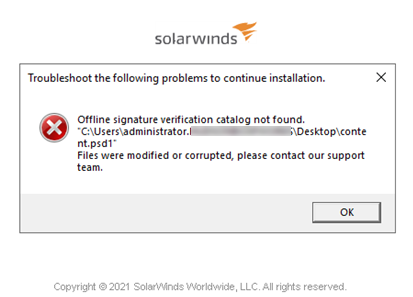
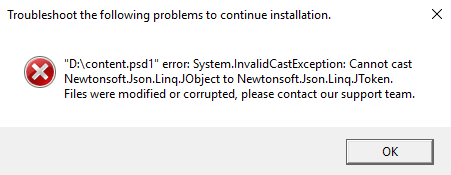
The following error messages are displayed when you upgrade to Orion Platform 2020.2.5:
Offline signature verification catalog not found
System.InvalidCastException
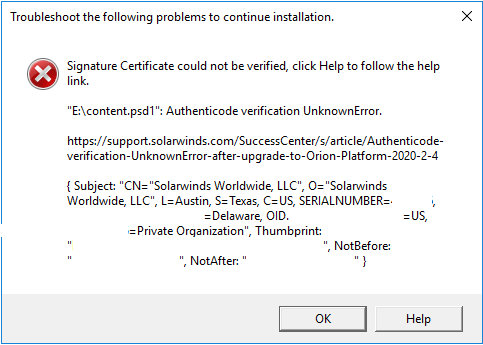
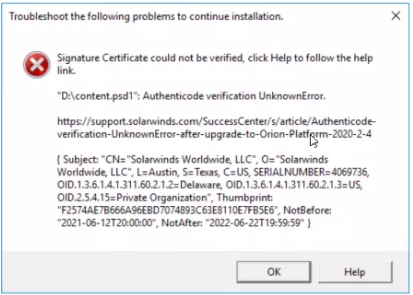
The following error message is displayed when you upgrade to Orion Platform 2020.2.6:
Signature Certificate could not be verified
The following error message is displayed when you upgrade to Orion Platform 2020.2.4 or later:
Authenticode verification UnknownError
The following error messages are displayed when you upgrade to Orion Platform 2020.2.5:
Offline signature verification catalog not found
System.InvalidCastException
The following error message is displayed when you upgrade to Orion Platform 2020.2.6:
Signature Certificate could not be verified
Product section
Orion Platform
Cause
An environmental issue with Windows Trusted Root Certificates.
Resolution
Check your certificates
-
Open Certificates and navigate to your Trusted Root Certificate.
-
Then right-click your certificate file, select Properties, and go to the Digital Signatures tab.
-
Click the View Certificate button and go to the Certification Path tab.
On Orion Platform 2020.2.4 and 2020.2.5- There should be three levels of trust, ending with SolarWinds Worldwide, LLC, signed with DigiCert SHA2 Assured ID Code Signing CA.
- DigiCert SHA2 Assured ID Code Signing CA should be signed with the trusted root, with DigiCert in the display name.
On Orion Platform 2020.2.6- There should be three levels of trust, ending with SolarWinds Worldwide, LLC, signed with DigiCert Trusted G4 Code Signing RSA4096 SHA384 2021 CA1.
- DigiCert Trusted G4 Code Signing RSA4096 SHA384 2021 CA1 should be signed with the trusted root, with DigiCert in the display name.
If there are less than three items in the Certification Path, and/or any of them is shown as untrusted, then your Windows environment is affected by the missing certificate trust root issue. Re-/install the trusted root certificate.
Install or reinstall the trusted root certificate manually
-
Download the certificate:On Orion Platform 2020.2.4 and 2020.2.5, download the DigiCert Assured ID Root CA certificate from the DigiCert Trusted Root Authority Certificates page (© 2021 DigiCert, Inc., available at https://www.digicert.com/kb/digicert-root-certificates.htm, obtained on March 2, 2021).
Direct download link (© 2021 DigiCert, Inc., available at https://cacerts.digicert.com/DigiCertAssuredIDRootCA.crt, obtained on March 2, 2021).
On Orion Platform 2020.2.6, download the DigiCert Trusted Root G4 certificate from the DigiCert Trusted Root Authority Certificates page (© 2021 DigiCert, Inc., available at https://www.digicert.com/kb/digicert-root-certificates.htm, obtained on March 2, 2021).
Direct download link (© 2021 DigiCert, Inc., available at https://cacerts.digicert.com/DigiCertTrustedRootG4.crt , obtained on July 22, 2021). (Use this option if upgrading to 2020.2.6) -
Verify that you have downloaded the correct certificate DigiCert Assured ID Root CA by checking its thumbnail.
On Orion Platform 2020.2.4 and Orion Platform 2020.2.5- Check the thumbprint on the DigicertTrusted Root Authority certificates pages. You should see "SHA1 Fingerprint: 05:63:B8:63:0D:62:D7:5A:BB:C8:AB:1E:4B:DF:B5:A8:99:B2:4D:43"
- Double-click the downloaded certificate file.
- In the Certificate pop-up, go to the Details tab, and scroll down to check the thumbprint. In the Thumbprint field, the thumbprint is displayed in lowercase, without colons as 0563b8630d62d75abbc8ab1e4bdfb5a899b24d43
On Orion Platform 2020.2.6
- Check the thumbprint on the DigicertTrusted Root Authority certificates pages. You should see "SHA1 Fingerprint: DD:FB:16:CD:49:31:C9:73:A2:03:7D:3F:C8:3A:4D:7D:77:5D:05:E4"
- Double-click the downloaded certificate file.
- In the Certificate pop-up, go to the Details tab, and scroll down to check the thumbprint. In the Thumbprint field, the thumbprint is displayed in lowercase, without colons as ddfb16cd4931c973a2037d3fc83a4d7d775d05e4
- If the certificate thumbprint is correct, install the certificate into Local Machine "Root" (Trusted Root Certification Authorities) and "AuthRoot" (Third-Party Root Certification Authorities).
If installing the certificate does not work or shows success but the certificate does not show in MMC, you may need to import the certificate manually. Follow the steps below to manually install the certificate.
Manual Process
- Click Start > Run, and then enter MMC.
- Click File > Add/Remove Snap-in....
- Highlight Certificates and select Add.
- Select Computer Account > Local Computer > Finish > OK.
- Expand Certificates > Trusted Root Certificate > Certificates folder.
- On the right pane, right-click and select All Tasks > Import.
- Import the downloaded certificate and check if DigiCert Trusted Root G4 and DigiCert Assured ID Root CA are already showing from the list.
- Once confirmed showing, repeat the steps in the Third-Party Root Certificate folder, and check when completed. When confirmed, proceed with the upgrade/installation.
Check the registry value (if the issue is still not resolved)
- If reinstalling the trusted root certificate does not resolve the issue, check the registry value for the following key: "HKEY_CURRENT_USER\Software\Microsoft\Windows\CurrentVersion\WinTrust\Trust Providers\Software Publishing"
- If the registry value is not 23c00, contact your domain administrator and ask them to either modify the value to 23c00 or to include 23c00 bitmask.
More details:
- WintrustGetRegPolicyFlags function (wintrust.h) (© 2021 Microsoft, available at https://docs.microsoft.com/en-us/windows/win32/api/wintrust/nf-wintrust-wintrustgetregpolicyflags, obtained on November 8, 2021)
- Error message when you try to validate a copy of Windows: The cryptographic operation failed because of a local security option setting (© 2021 Microsoft, available at https://docs.microsoft.com/en-us/troubleshoot/windows-server/deployment/error-when-you-validate-copy-windows, obtained on November 8, 2021)