
Applications Systems
AppInsight for Exchange connection troubleshooting
This article provides an overview of how to troubleshoot "Test failed" or other errors in SAM when testing credentials by replacing the IP with the hostname in AppInsight for Exchange.
First published date
10/15/2018 7:58 PM
Last published date
12/17/2021 6:51 PM
Overview
This article describes how to troubleshoot a Test failed error or other errors when testing credentials in AppInsight for Exchange.
Product section
Server Application Monitor
Cause
The cause of a Test failed, Access Denied, Network path not found, etc. error when testing credentials can vary from environment to environment.
Permissions for the credentials are one of the more common causes. See the AppInisght for Exchange requirements and permissions topic for more information.
Resolution
Resolutions 1
for the most common error messages can be found in the Troubleshoot error codes in AppInsight for Exchange article.
Resolution 2
If the article linked above does not fix the error, you can attempt to replace the "${IP}" in the PowerShell - Exchange URL: "https://${IP}/powershell/" with the hostname
Resolution 3:
Please perform the following to verify if the PowerShell is working on the exchange server:
3. You will be prompted to enter credential once you’ve pasted the command, please ensure that you enter the credential used for SAM and not your own windows credential.
4. The command above should return you an output of your Exchange server details:
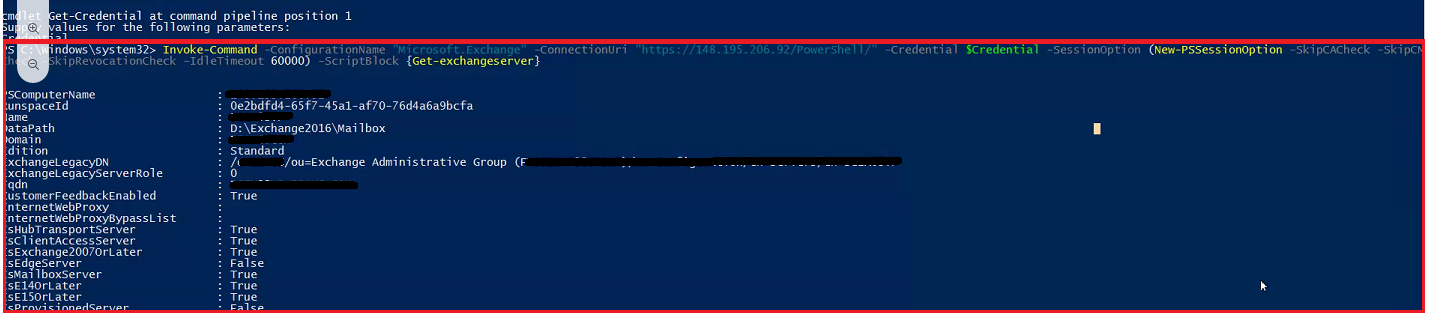
5. If you're not receiving the details above and it's showing PowerShell error, it means that there's an issue with the PowerShell on the Exchange server.
6. You will need to check with the Microsoft/Exchange/ server admin and fix the PowerShell issue before Orion is able to connect to the server.
Resolution 4:
If all else fails manually run through the steps for configuring the Exchange server - Manually configuring the Exchange server.
for the most common error messages can be found in the Troubleshoot error codes in AppInsight for Exchange article.
Resolution 2
If the article linked above does not fix the error, you can attempt to replace the "${IP}" in the PowerShell - Exchange URL: "https://${IP}/powershell/" with the hostname
- After replacing the "${IP}" with the hostname, hit "test connection" to see if the results are different.
- If you get a different error, that is a good sign. You may have to "poll now" on the application and wait 5-10 minutes for the poll to come through before things begin to function.
- If things do not begin to function after that time look in the APM logs for the application id for that AppInsight for Exchange application after turning on debugging (Advanced -> Override template -> Debug) and doing a few "poll now"s.
- Check the SAM application debug logs and SolarWinds.APM.BlackBox.Exchg.Jobs.log
Resolution 3:
Please perform the following to verify if the PowerShell is working on the exchange server:
- Right-click and launch PowerShell as administrator on Orion polling assigned to the Appinsight Exchange node
- Input the following (Replace the {IP} with the affected exchange node IP address):
# Scripts are not supported under any SolarWinds support program or service.
# Scripts are provided AS IS without warranty of any kind. SolarWinds further
# disclaims all warranties including, without limitation, any implied warranties
# of merchantability or of fitness for a particular purpose. The risk arising
# out of the use or performance of the scripts and documentation stays with you.
# In no event shall SolarWinds or anyone else involved in the creation,
# production, or delivery of the scripts be liable for any damages whatsoever
# (including, without limitation, damages for loss of business profits, business
# interruption, loss of business information, or other pecuniary loss) arising
# out of the use of or inability to use the scripts or documentation.

$credential=Get-Credential
Invoke-Command -ConfigurationName "Microsoft.Exchange" -ConnectionUri "https://{IP}/PowerShell/" -Credential $Credential -SessionOption (New-PSSessionOption -SkipCACheck -SkipCNCheck -SkipRevocationCheck -IdleTimeout 60000) -ScriptBlock {Get-exchangeserver}
3. You will be prompted to enter credential once you’ve pasted the command, please ensure that you enter the credential used for SAM and not your own windows credential.
4. The command above should return you an output of your Exchange server details:
5. If you're not receiving the details above and it's showing PowerShell error, it means that there's an issue with the PowerShell on the Exchange server.
6. You will need to check with the Microsoft/Exchange/ server admin and fix the PowerShell issue before Orion is able to connect to the server.
Resolution 4:
If all else fails manually run through the steps for configuring the Exchange server - Manually configuring the Exchange server.