
Network Management
All Nodes - Tree
This article defines how you can define hierarchy levels for the All Nodes - Tree resource.
First published date
11/29/2018 10:37 PM
Last published date
12/19/2021 3:20 PM
Overview
The All Nodes - Tree resource provides a status icon and the node name for each node monitored by Orion NPM. Clicking a node name opens the Node Details view for the selected node.
Product section
Network Performance Monitor
Resolution
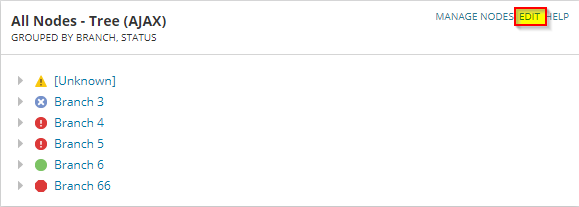
1. Clicking Edit allows you to edit the All Nodes - Tree Resource Title and group displayed nodes into three levels, using any of the following node properties:
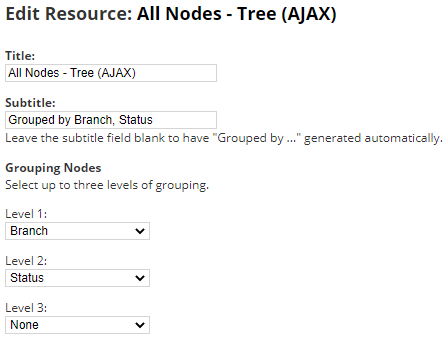
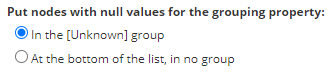
Selecting either of the following options puts the Nodes with NULL values to either of the grouping property
3. If you want to retain an expanded tree when you leave the view on which the All Nodes resource you are configuring is located, select Remember Expanded Groups.
4. You can also enable optional filters using SQL queries to limit the displayed node list. For more information about filtering with SQL queries, see “Using Filters”.
5. When you are finished editing the resource, click Submit
- Note: Any custom properties defined for nodes will also be listed as grouping criteria.
- Status
- Vendor
- Machine Type
- Contact
- Location
- IOS Image
- IOS Version
- IP Version
- Object Sub-Type
- System OID
- City
- Comments
- Department
Selecting either of the following options puts the Nodes with NULL values to either of the grouping property
3. If you want to retain an expanded tree when you leave the view on which the All Nodes resource you are configuring is located, select Remember Expanded Groups.
4. You can also enable optional filters using SQL queries to limit the displayed node list. For more information about filtering with SQL queries, see “Using Filters”.
5. When you are finished editing the resource, click Submit