
Security Compliance
ARM service start timeout
Resolution to an issue in which the ARM does not start after logging in to the service.
First published date
4/1/2019 5:17 PM
Last published date
4/1/2019 5:17 PM
Overview
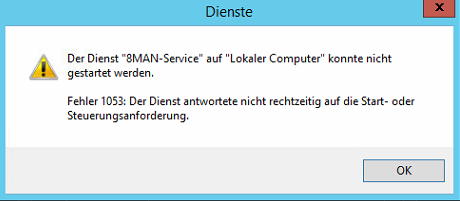
This article provides a resolution to an issue in which the ARM service does not start due to a timeout.
Product section
Access Rights Manager
Cause
It is possible that the default start time of 30 seconds for the ARM service is too short. This leads to the ARM service being unable to start successfully.
Resolution
The start time for services must be increased by extending the registry entry, if it already exists, or adding the registry entry if the entry does not exist.
- Open Windows regedit.
- Open the registry path:
HKEY_LOCAL_MACHINE\SYSTEM\CurrentControlSet\Control - Right-click in the right frame, and select
NEW. - Select
DWORD value (32-bit). - Name the new entry
ServicesPipeTimeoutIMPORTANT: It is very important to use the correct spelling for the registry entry!
- Right-click the new entry and choose Change.
- Enter the following values:
- Value:
ea60 - Base:
hexadecimal
- Value:
- Click OK to confirm.
- Restart the Windows Server.
Experience has shown that anti-virus scanners may significantly contribute to the delayed start of the service.
Alternative one-time resolution:
- Disable the anti-virus scanner.
- Start the service.
- Enable the anti-virus scanner.