
Network Management
A node is showing as down but you can ping the same node successfully from the Orion Server in Orion Platform
A node is showing down, but you can ping it from the Orion server.
First published date
10/17/2018 3:35 PM
Last published date
8/26/2022 1:42 PM
Overview
This article provide a solution for an issue where node is showing down but can be ping from the Orion server.
Product section
Network Performance Monitor
Cause
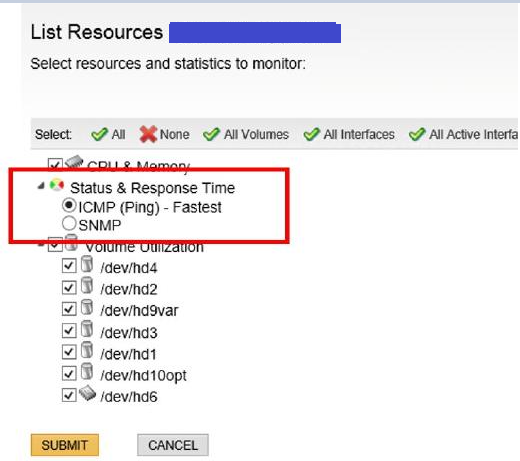
This can occur because the fetching method for Status & Response Time is set to SNMP and it is not working.
This can also occur when multiple polling engines are used but the node in question is not accessible from the assigned polling engine.
This can also occur when multiple polling engines are used but the node in question is not accessible from the assigned polling engine.
Resolution
Resolution 1(Recommended)
Contact your network administrator to address SNMP communication issues between Orion server and the affected node
Resolution 2
If ICMP is working, change the fetching method for Status & Response Time from SNMP to ICMP in the Orion database
- How to obtain a node ID from the Web Console
- In your Orion server, open Database Manager
- Run the query below(NOTE: Replace @Node_ID_here with the actual node ID)
-- Scripts are not supported under any SolarWinds support program or service.
-- Scripts are provided AS IS without warranty of any kind. SolarWinds further
-- disclaims all warranties including, without limitation, any implied warranties
-- of merchantability or of fitness for a particular purpose. The risk arising
-- out of the use or performance of the scripts and documentation stays with you.
-- In no event shall SolarWinds or anyone else involved in the creation,
-- production, or delivery of the scripts be liable for any damages whatsoever
-- (including, without limitation, damages for loss of business profits, business
-- interruption, loss of business information, or other pecuniary loss) arising
-- out of the use of or inability to use the scripts or documentation.

SELECT * FROM [dbo].[Pollers] WHERE NetObject = '@Node_ID_here' AND PollerType LIKE '%Native'
- Click Enable table editing and apply the following changes
- Remove Enabled checkbox under N.Status.SNMP.Native and N.ResponseTime.SNMP.Native
- Add Enabled checkbox under N.Status.ICMP.Native and N.ResponseTime.ICMP.Native